Start a 14-day trial
Boards, lists & tasks

One project, as a board or as a list

Every project has a board of columns and cards, and the same tasks as a list. A task carries what the team needs to do it: subtasks, comments, files, labels, dates, points and what it blocks.

The board

Columns, cards and drag and drop

A board is a row of columns, called sections: Backlog, To do, In progress, In review, Done, or whatever names your team uses. Cards move between columns by drag and drop, and quick add puts a new card straight into a column.

  • On each card: labels, assignee, due date, priority (low, medium, high or urgent), and counts of subtasks and comments
  • Due dates are shown as Today, Tomorrow or Yesterday when they are close, and turn red once they have passed
  • Filters above the board narrow it by text, priority, person, label, status and due date

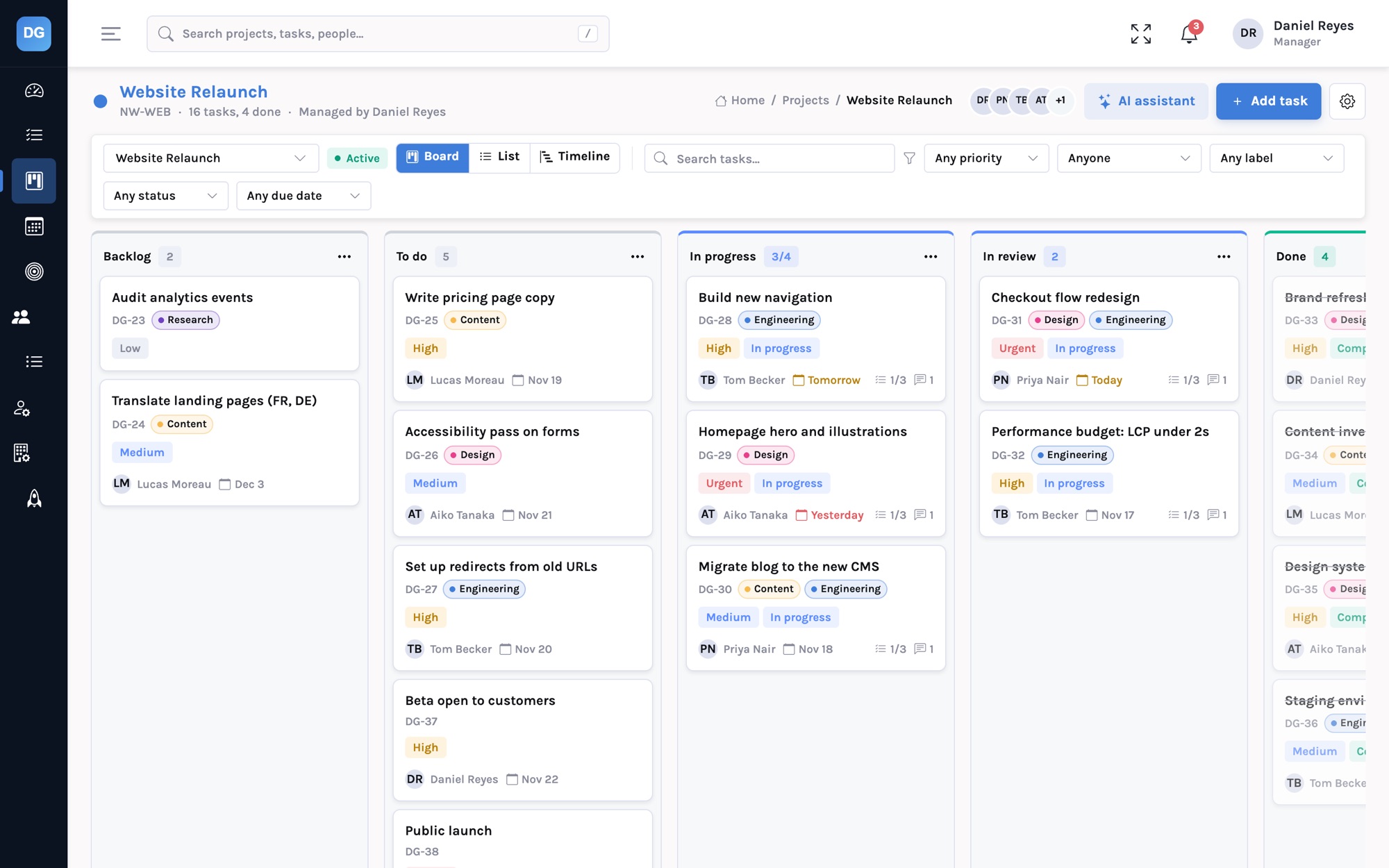
In the demo, Website Relaunch has 16 tasks across five columns, four of them done.
app.delivergoals.com · Website Relaunch · Board
DeliverGoals board for the Website Relaunch project (NW-WEB, 16 tasks, 4 done, managed by Daniel Reyes): columns Backlog, To do, In progress, In review and Done; cards such as Build new navigation (DG-28, Engineering label, High, Tom Becker, due Tomorrow, 1 of 3 subtasks, 1 comment), Homepage hero and illustrations (Urgent, Aiko Tanaka, due Yesterday in red) and Checkout flow redesign (Design and Engineering labels, Urgent, Priya Nair, due Today).
One board for the whole relaunch. Each card shows its labels, priority, assignee, due date, and how many subtasks and comments it has; a due date turns amber when it is close and red once it has passed.
The list

The same tasks as rows, edited in place

The list view groups tasks by column and puts their fields in a table. Status, priority, assignee and due date are changed right in the row, without opening the task.

  • Bulk actions: tick several rows, then move, update or delete them together
  • Export the list when you need the tasks outside DeliverGoals
  • Add task at the end of each group puts the new task in that column
app.delivergoals.com · Website Relaunch · List
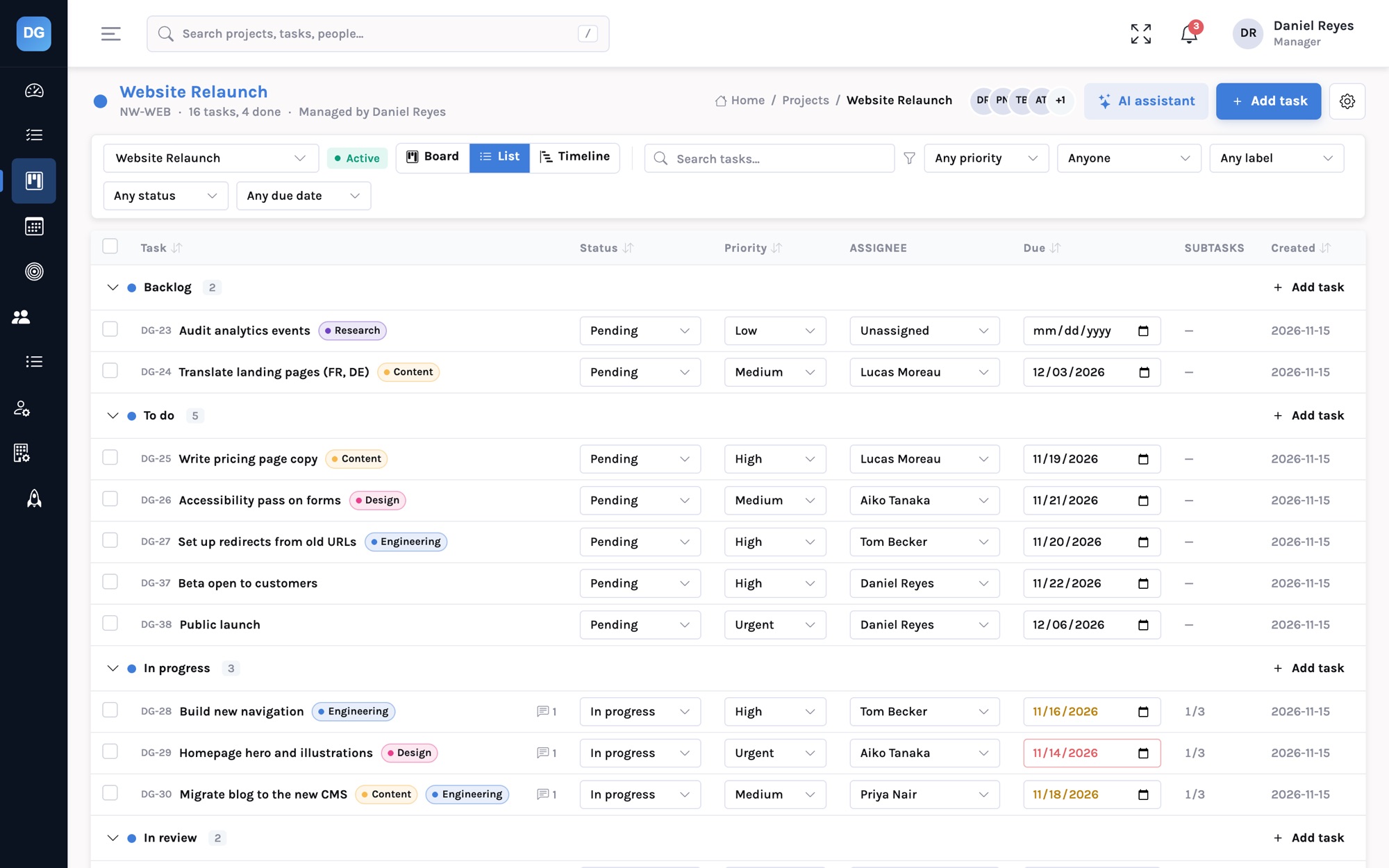
List view of the Website Relaunch project grouped by column (Backlog 2, To do 5, In progress 3, In review 2): each row has the task code and name, labels, and drop-downs for status, priority and assignee, a due date field (11/14/2026 in red for Homepage hero and illustrations), a subtask count such as 1/3 and the created date, with a checkbox on every row.
The same tasks as rows. Status, priority, assignee and due date are edited in place, and the checkboxes select several tasks to move, update or delete together.
The task

What a task holds

Opening a card shows the task in a side panel, with the board still visible behind it.

  • Description and subtasks: a checklist whose items can each be assigned to a person
  • Comments with replies and @mentions; the person mentioned gets a notification
  • File attachments up to 25 MB each, checked by type
  • Labels, story points and progress %
  • Start date and due date, and a milestone flag
  • Dependencies: this task blocks, or is blocked by, another
  • Activity: the full history of changes to the task
app.delivergoals.com · Task DG-31
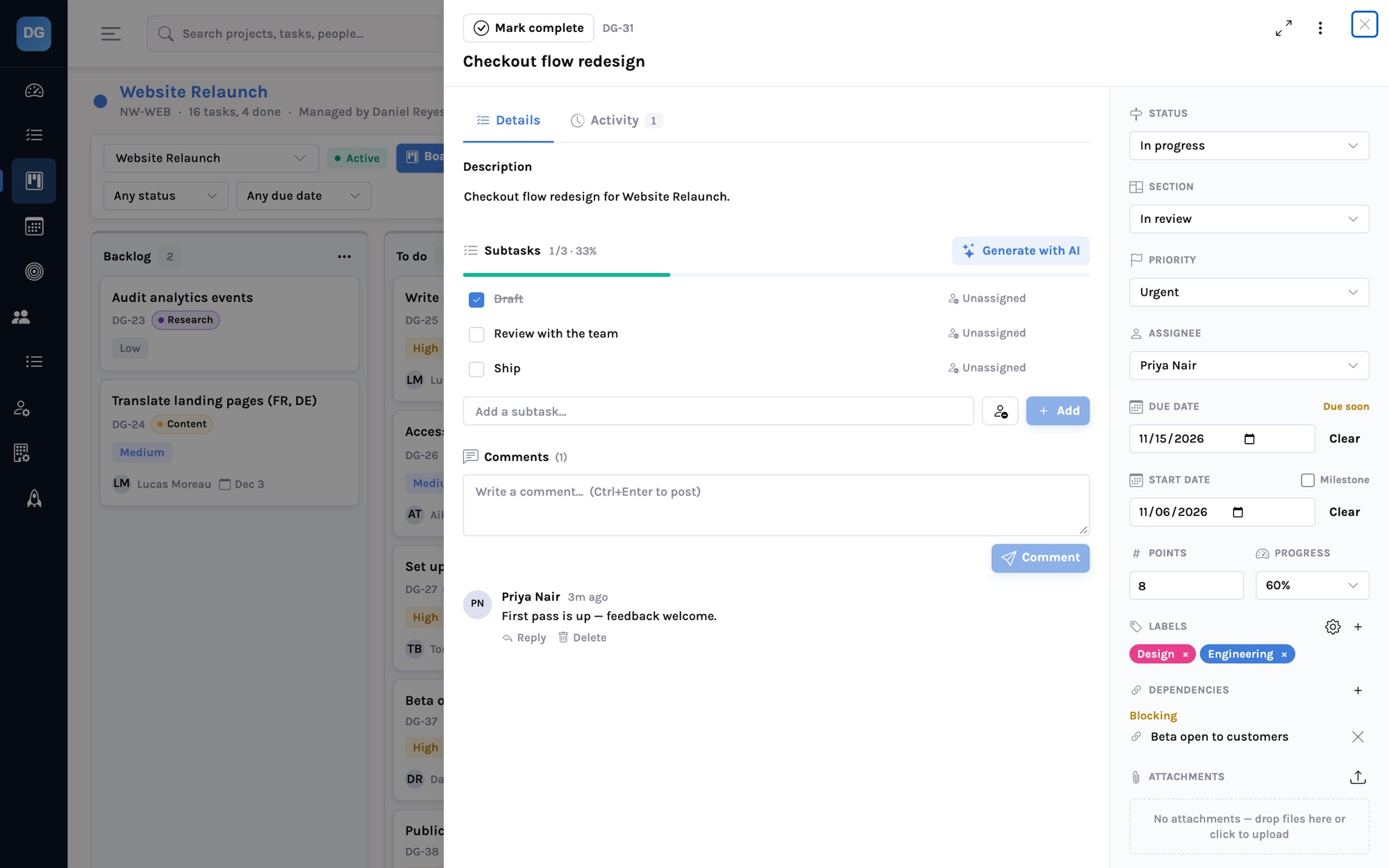
Task panel for Checkout flow redesign (DG-31): a description, three subtasks with 1 of 3 done (33%) and a Generate with AI button, a comment from Priya Nair with Reply, and on the right status In progress, section In review, priority Urgent, assignee Priya Nair, due date 11/15/2026 marked Due soon, start date 11/06/2026 with a Milestone checkbox, 8 points, 60% progress, labels Design and Engineering, a dependency Blocking: Beta open to customers, and an attachments drop area.
Everything about one task in a side panel: subtasks, comments, dates, points, progress, labels, what it blocks, and attachments. The Activity tab keeps the history of changes.
Make it yours

Custom fields, saved views and column limits

Each project can define its own custom fields — text, number, date, single or multi select, checkbox, person or link — and show up to two on the cards. Filters for them sit in the toolbar, and a filter set can be saved as a view, for yourself or shared with the project.

  • Column limits: a full column says so (3/3) and asks a manager before going over
  • Recurring tasks: weekly on Friday, monthly on the 1st, every N days; finishing one makes the next
  • Templates: save a task, or a whole project, and start the next one from it
  • Live: when a colleague moves a card, your board shows it within a second
app.delivergoals.com · Website Relaunch · Board
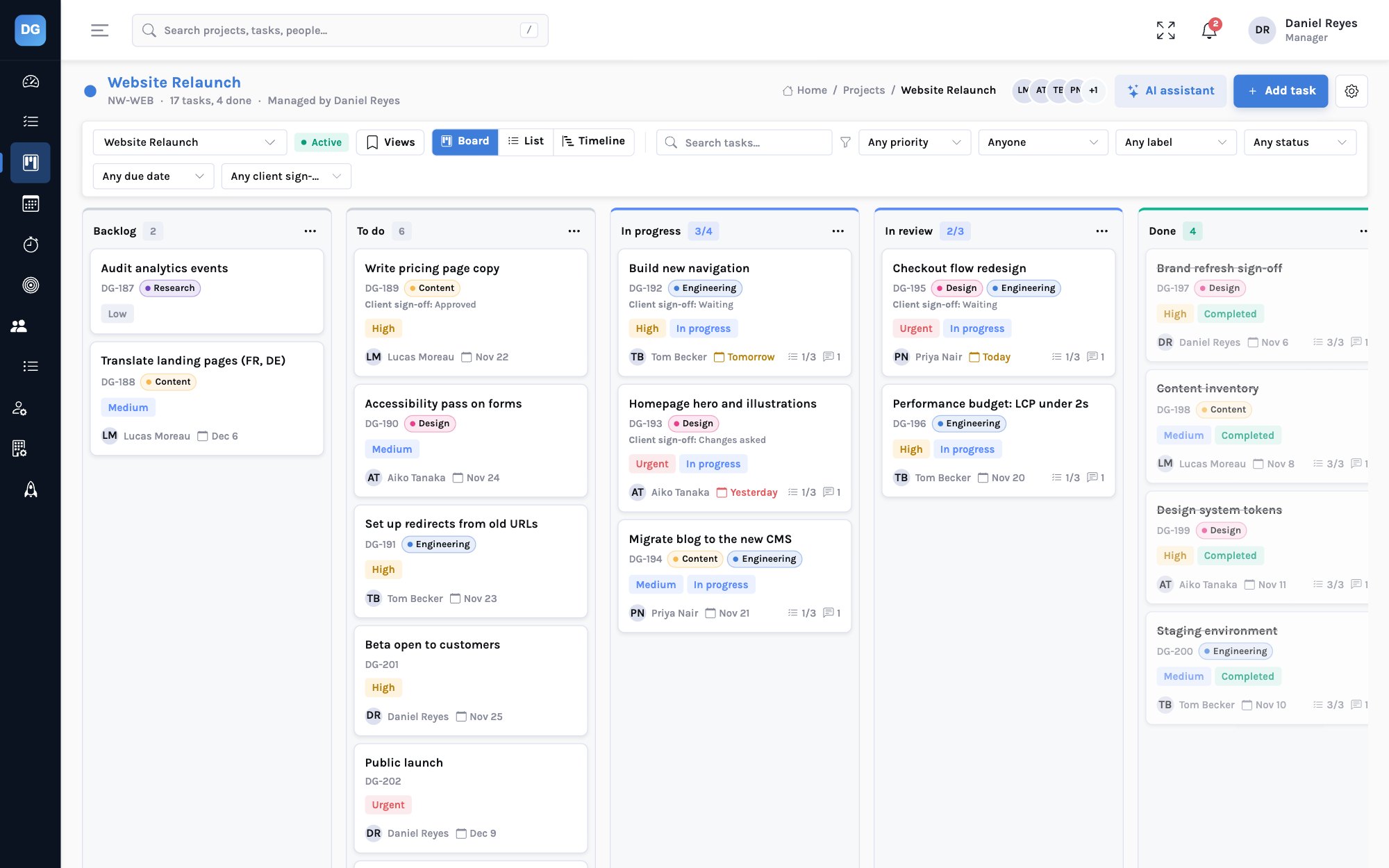
The Website Relaunch board with phase 2 features: a Views menu and a client sign-off filter in the toolbar; column counts against limits (In progress 3/4, In review 3/3 at its limit); cards showing a custom field, Client sign-off: Waiting, Approved or Changes asked, under the task name.
Column limits shown as 3/4 and 3/3, saved views and custom-field filters in the toolbar, and a custom field on the cards.
Projects

Client work and internal work

A project is marked as client or internal and has a colour, a code, a manager, members and a status: active, on hold, completed or cancelled. Clients and divisions keep related projects together. People see the projects they are members of.

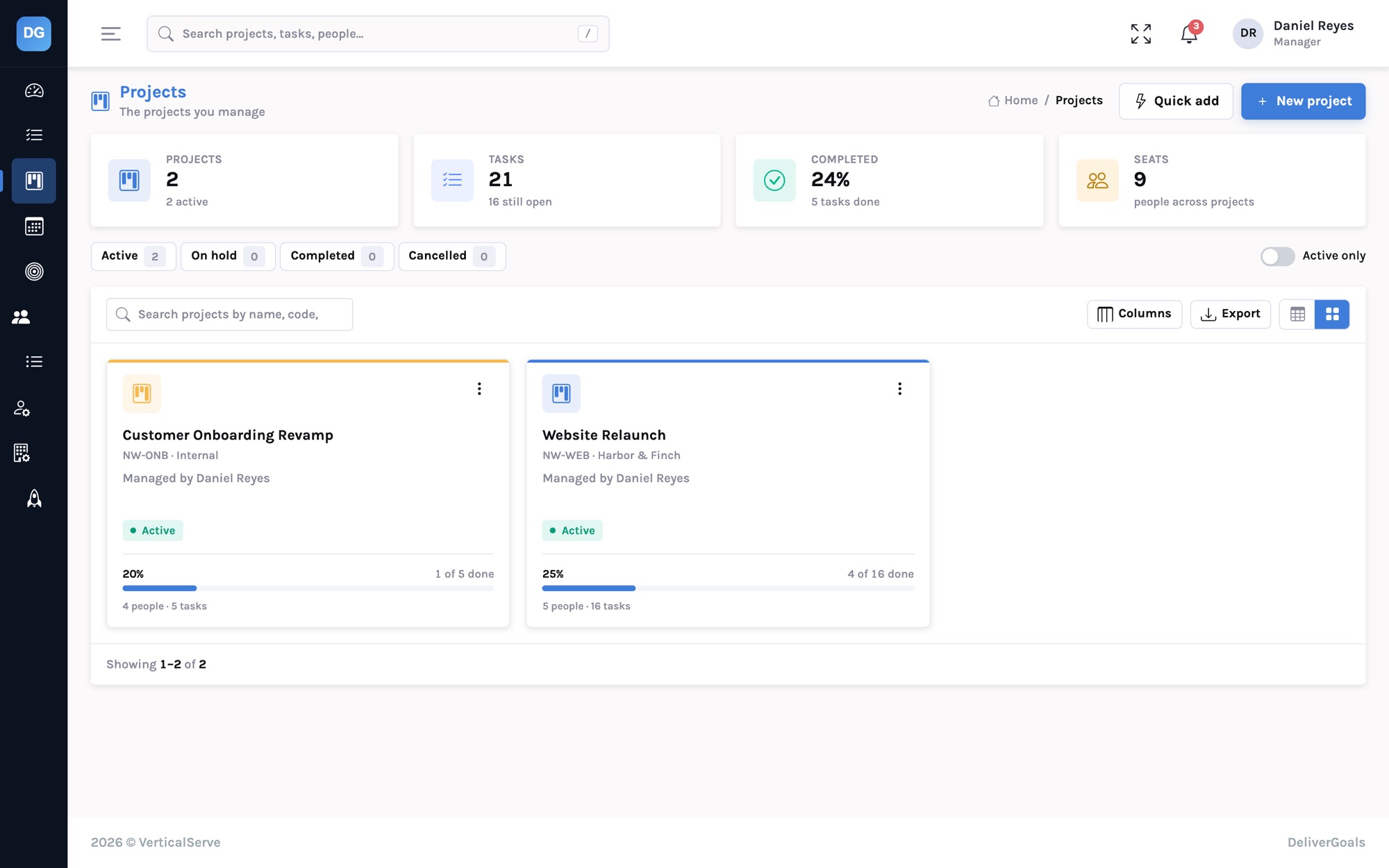
In the demo, Website Relaunch (NW-WEB) is for the client Harbor & Finch and Customer Onboarding Revamp (NW-ONB) is internal.
app.delivergoals.com · Projects
Projects page for a manager: tiles for 2 projects, 21 tasks with 16 still open, 24% completed and 9 seats; status tabs Active, On hold, Completed and Cancelled; cards for Customer Onboarding Revamp (NW-ONB, Internal, 1 of 5 done, 4 people) and Website Relaunch (NW-WEB, client Harbor & Finch, 4 of 16 done, 5 people), both Active and managed by Daniel Reyes.
Each project has a code, a colour, a client or “Internal”, a manager, a status, and its progress from the tasks done.
How it works

From a new card to a finished task

From a new card to a finished task 1Quick addType a title in acolumn; the cardexists.2Fill it inAssignee, priority,labels, start and duedates, subtasks.3Work itComments, @mentions,files; subtasksticked off; progressupdated.4Move itDrag the card acrossthe columns as itadvances.5CompleteMark complete; theproject manager isnotified and progressrises.From a new card to a finished task 1Quick addType a title in a column; the cardexists.2Fill it inAssignee, priority, labels, startand due dates, subtasks.3Work itComments, @mentions, files;subtasks ticked off; progressupdated.4Move itDrag the card across the columnsas it advances.5CompleteMark complete; the project manageris notified and progress rises.
Every change along the way is kept in the task’s activity history.
Questions it answers

What you can find out

Each answer is on a screen you can open.

What is in review right now?The In review column on the board
Which tasks are urgent and unassigned?The list view, filtered by priority and person
What is this task waiting on?Dependencies on the task: blocks / blocked by
Who changed the due date, and when?The Activity tab on the task
How many subtasks are left?The subtask count on the card and the bar in the task
Which projects are on hold?The status tabs on the Projects page
In practice

What teams use it for

Run a client project on one board

Design, content and engineering work for one client in one place, told apart by labels.

Tidy up in bulk

After a planning meeting, select the rows in the list and move or re-prioritise them together.

Keep the discussion on the task

Comments, replies, @mentions and files stay with the task instead of in a chat thread.

Where it stops. Two people editing the same field at once is last-write-wins; boards refresh live, but there is no co-editing cursor. Custom fields are per project, not company-wide. Automation is a set of fixed recipes, not a rule builder.

Put one project on a board

Create a workspace, add a project and drag the first card across. The 14-day trial covers up to 10 people.

Start a 14-day trial