Start a 14-day trial
Timeline, calendar & My tasks

When things are due, for the project and for you

Three views of time. The timeline shows one project as bars and milestones. The calendar shows a month of due dates across your projects. My tasks shows one person’s work, most urgent first.

Timeline

Bars from start date to due date

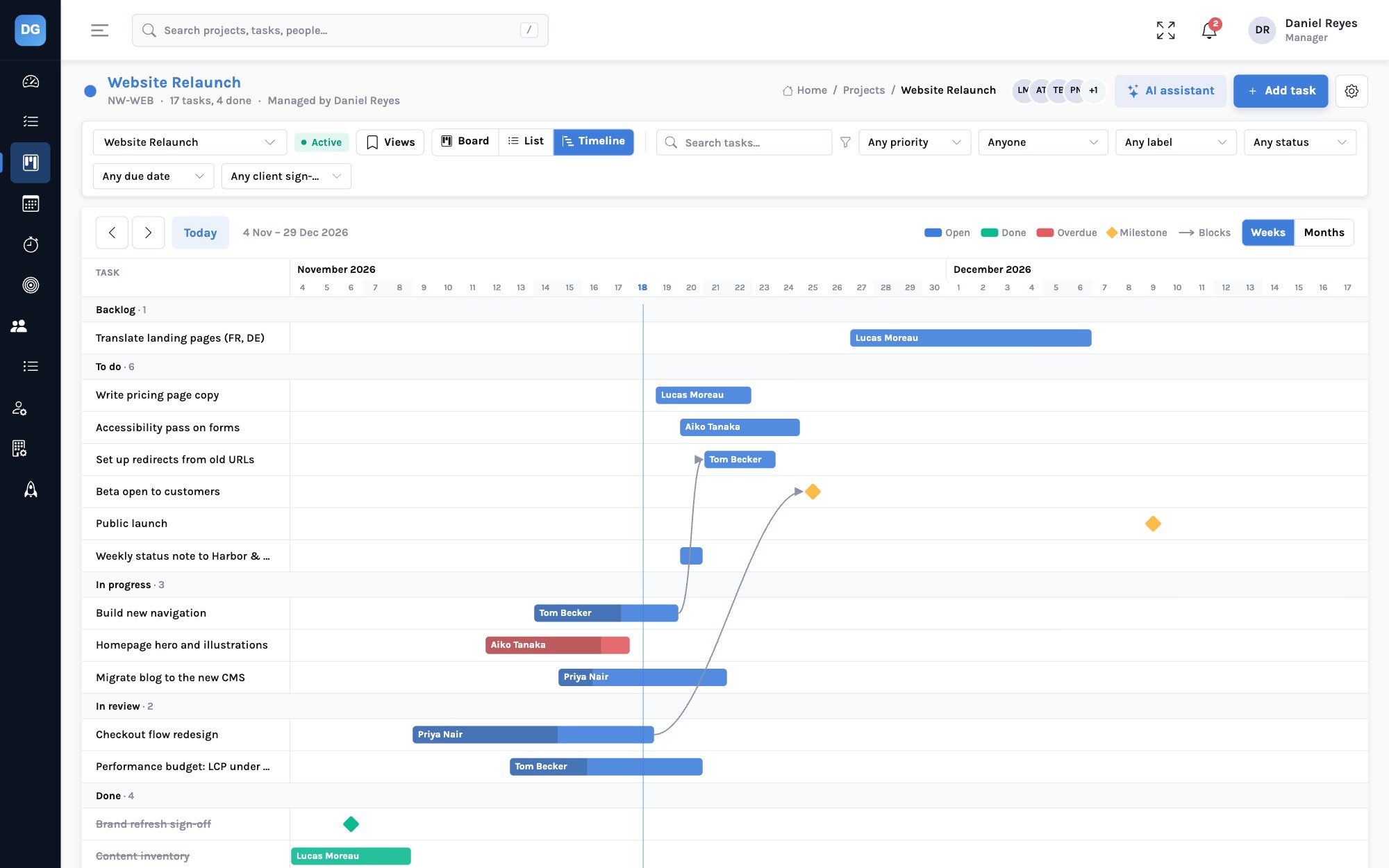
Every project has a timeline next to its board and list. A task with a start date and a due date is drawn as a bar between them; a task flagged as a milestone is drawn as a diamond on its date.

  • A today line runs down the chart
  • Overdue tasks are red; done and open tasks have their own colours
  • Switch the scale between weeks and months
  • Tasks with no dates are listed separately as unscheduled, so they are not forgotten
  • Dependencies are drawn as arrows; one planned to start before its blocker is due is flagged in red

In the demo the relaunch runs from early November to the public launch milestone on 6 December.
app.delivergoals.com · Website Relaunch · Timeline
The Website Relaunch timeline, 4 November to 29 December 2026, with arrows from blocking tasks to the tasks they hold up, for example from Checkout flow redesign to the Beta open to customers milestone, and a legend entry for Blocks.
Dependencies drawn as arrows from the end of each blocker to the start of what it blocks.
Calendar

A month of due dates across projects

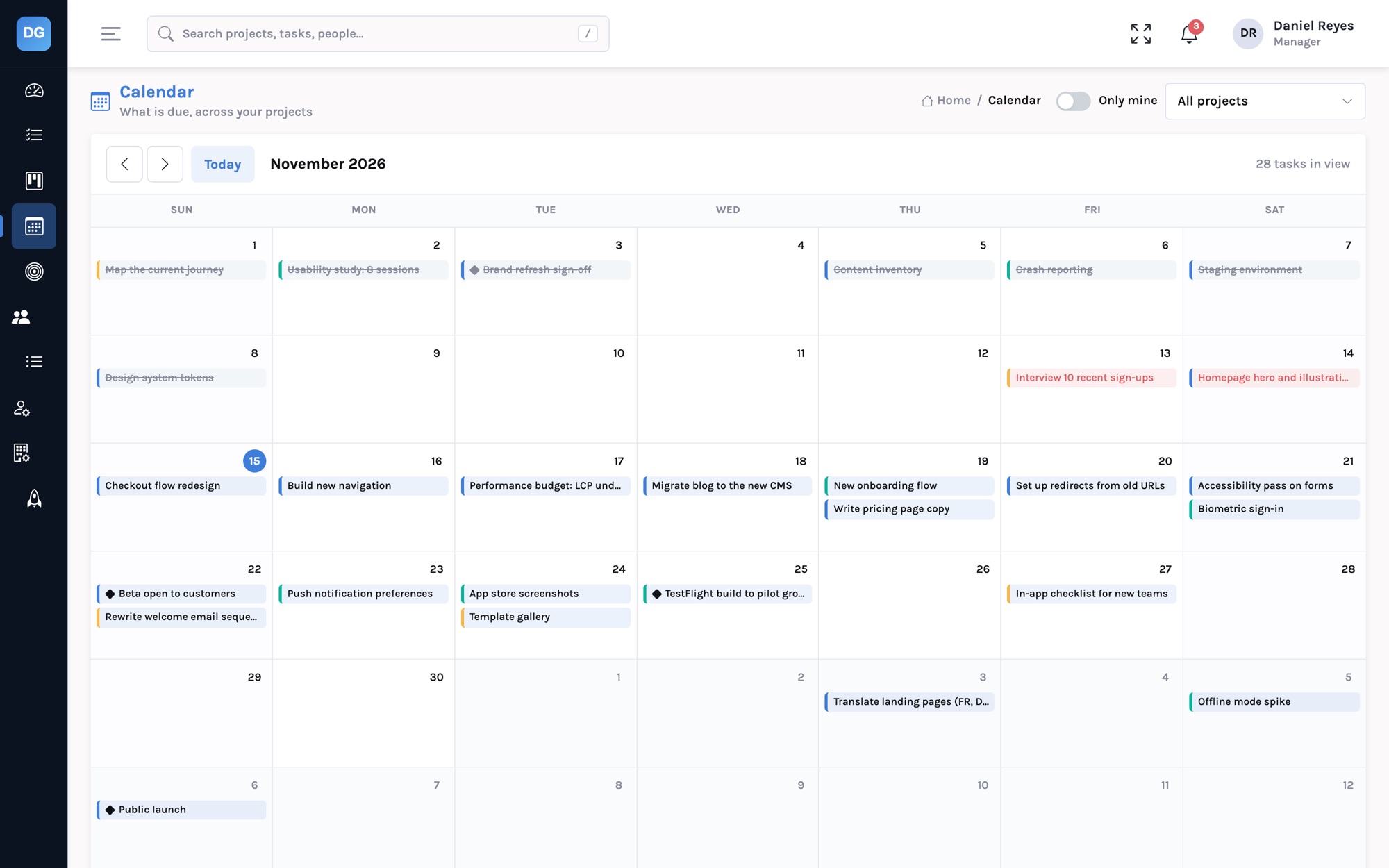
The calendar puts the due dates from all your projects on one month grid. Completed tasks are struck through, overdue ones are red and milestones are marked.

  • Only mine hides everything not assigned to you
  • A project filter narrows the month to one project
app.delivergoals.com · Calendar
Calendar for November 2026 across all projects, 28 tasks in view: completed tasks struck through in the first week, overdue tasks in red on 13 and 14 November, today (15 November) highlighted with Checkout flow redesign, tasks from several projects through the month, and diamond-marked milestones such as Beta open to customers on 22 November and Public launch on 6 December; an Only mine switch and a project filter at the top.
Due dates from every project you can see, in one month. Done work is struck through, late work is red, milestones carry a diamond, and “Only mine” narrows it to your own tasks.
My tasks

Everything assigned to you, in one list

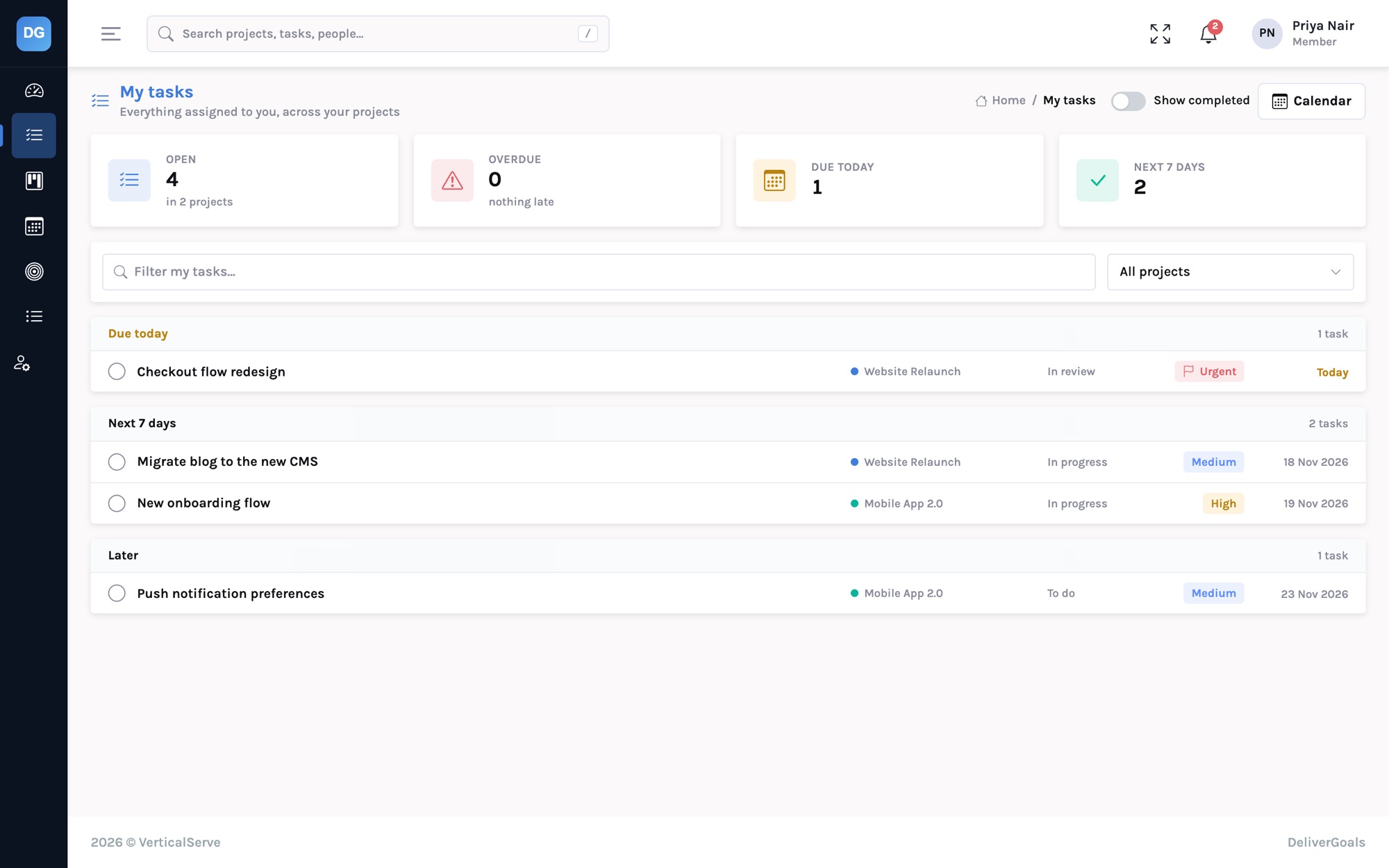
My tasks collects your tasks from every project and groups them by urgency: Overdue, Due today, Next 7 days, Later and No date. Each row shows the project, the column the task is in, its priority and its date. Tick the circle to complete a task from here.

In the demo Priya Nair has four open tasks in two projects: one due today, two in the next seven days and one later.
app.delivergoals.com · My tasks
My tasks for Priya Nair, a member: tiles for Open 4 in 2 projects, Overdue 0, Due today 1 and Next 7 days 2; then groups Due today (Checkout flow redesign, Website Relaunch, Urgent), Next 7 days (Migrate blog to the new CMS on 18 Nov; New onboarding flow, Mobile App 2.0, on 19 Nov) and Later (Push notification preferences on 23 Nov), each with a circle to tick it complete.
One person’s work across two projects, sorted by urgency rather than by project. Ticking the circle completes the task without opening its board.
On a phone

The same list in a phone browser

My tasks is the page most people open away from their desk. It works in a phone’s browser; there is no app to install.
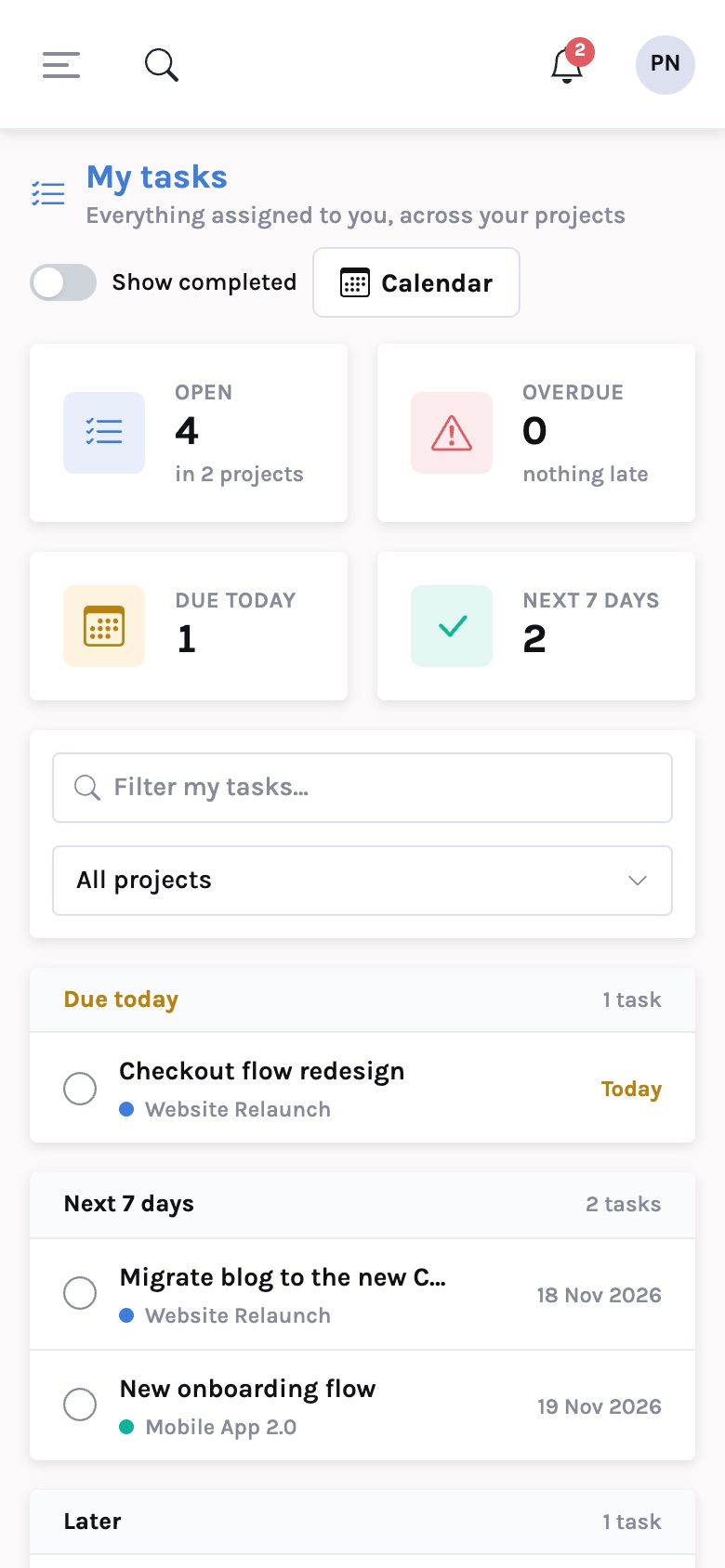
My tasks in a 390-pixel-wide phone browser for Priya Nair: the four tiles stacked two by two (Open 4, Overdue 0, Due today 1, Next 7 days 2), the filter and project selector, then Due today with Checkout flow redesign and Next 7 days with Migrate blog to the new CMS and New onboarding flow.
My tasks at 390 px wide.
How it works

How a date ends up in each view

How a date ends up in each view 1Task datesA start date, a duedate, and a milestoneflag if it is one.2TimelineA bar from start todue, or a diamond;red when overdue.3CalendarThe due date on themonth grid, withevery otherproject’s.4My tasksThe assignee sees itunder Overdue, Duetoday, Next 7 days orLater.5DoneTicked off in Mytasks or on theboard; struck throughon the calendar.How a date ends up in each view 1Task datesA start date, a due date, and amilestone flag if it is one.2TimelineA bar from start to due, or adiamond; red when overdue.3CalendarThe due date on the month grid,with every other project’s.4My tasksThe assignee sees it underOverdue, Due today, Next 7 days orLater.5DoneTicked off in My tasks or on theboard; struck through on thecalendar.
One set of dates on the task feeds all three views.
Questions it answers

What you can find out

Each answer is on a screen you can open.

Will we make the launch date?The timeline: bars against the milestone diamond and the today line
What is overdue on this project?Red bars on the timeline
What is due this week across everything?The calendar, with or without Only mine
What should I do first today?My tasks: Overdue, then Due today
Which tasks have no dates yet?The unscheduled list under the timeline
What is on my plate in the other project?My tasks shows the project beside each task
In practice

What teams use it for

Plan backwards from a milestone

Flag the launch as a milestone, then give each task a start and due date that fits before it.

Start the day from one page

People on several projects open My tasks instead of visiting each board.

Spot a crowded week

The calendar shows when several projects have due dates on the same days.

Where it stops. There are no sprints or burndown charts. The timeline does not move dependent tasks for you when a blocker slips; it shows the conflict. The calendar shows due dates in a month view.

See your own dates on a timeline

Give a few tasks a start and a due date and open the Timeline tab. The 14-day trial covers up to 10 people.

Start a 14-day trial