A board is organised around a project. A person is not. Someone who works on a client relaunch in the morning and an internal app in the afternoon has two boards, two sets of columns and two managers, and no single place that says what is due today. The usual fix is a private to-do list, which is out of date by lunchtime.
DeliverGoals has two views that start from the person instead of the project: My tasks and the Calendar. This post walks through both using Priya Nair, a member of the fictional Northwind Studio demo workspace, who is on two projects: Website Relaunch for a client and Mobile App 2.0 internally.
My tasks: one list, sorted by urgency
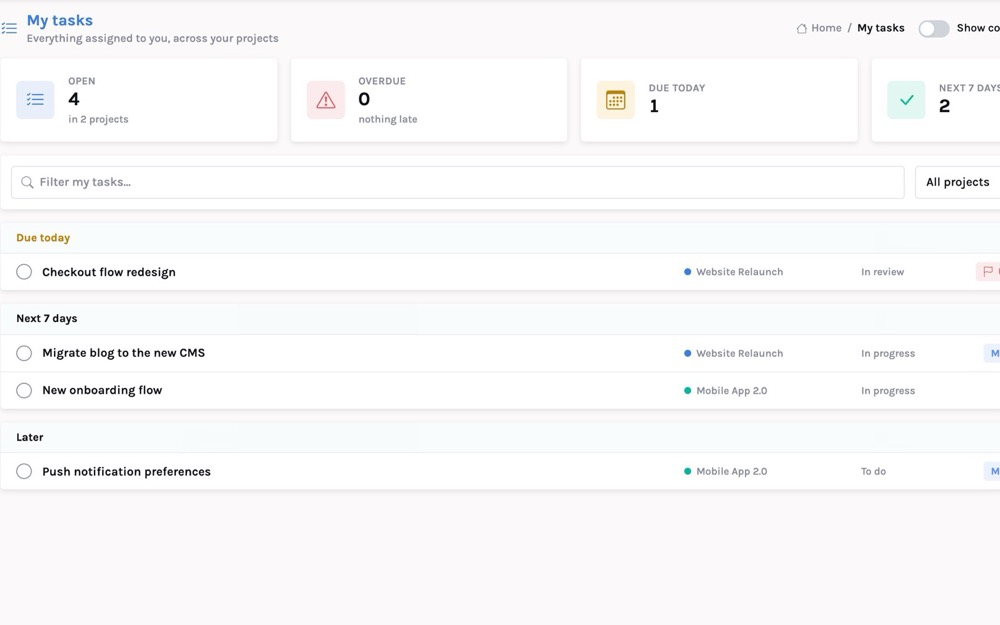
My tasks shows everything assigned to you, from every project you are a member of. It does not group by project. It groups by how soon the task is due.
Each row shows the task, a coloured dot and the name of its project, the column it is in on that project’s board, its priority and its date. At the top, four tiles count what is open, overdue, due today and due in the next seven days.
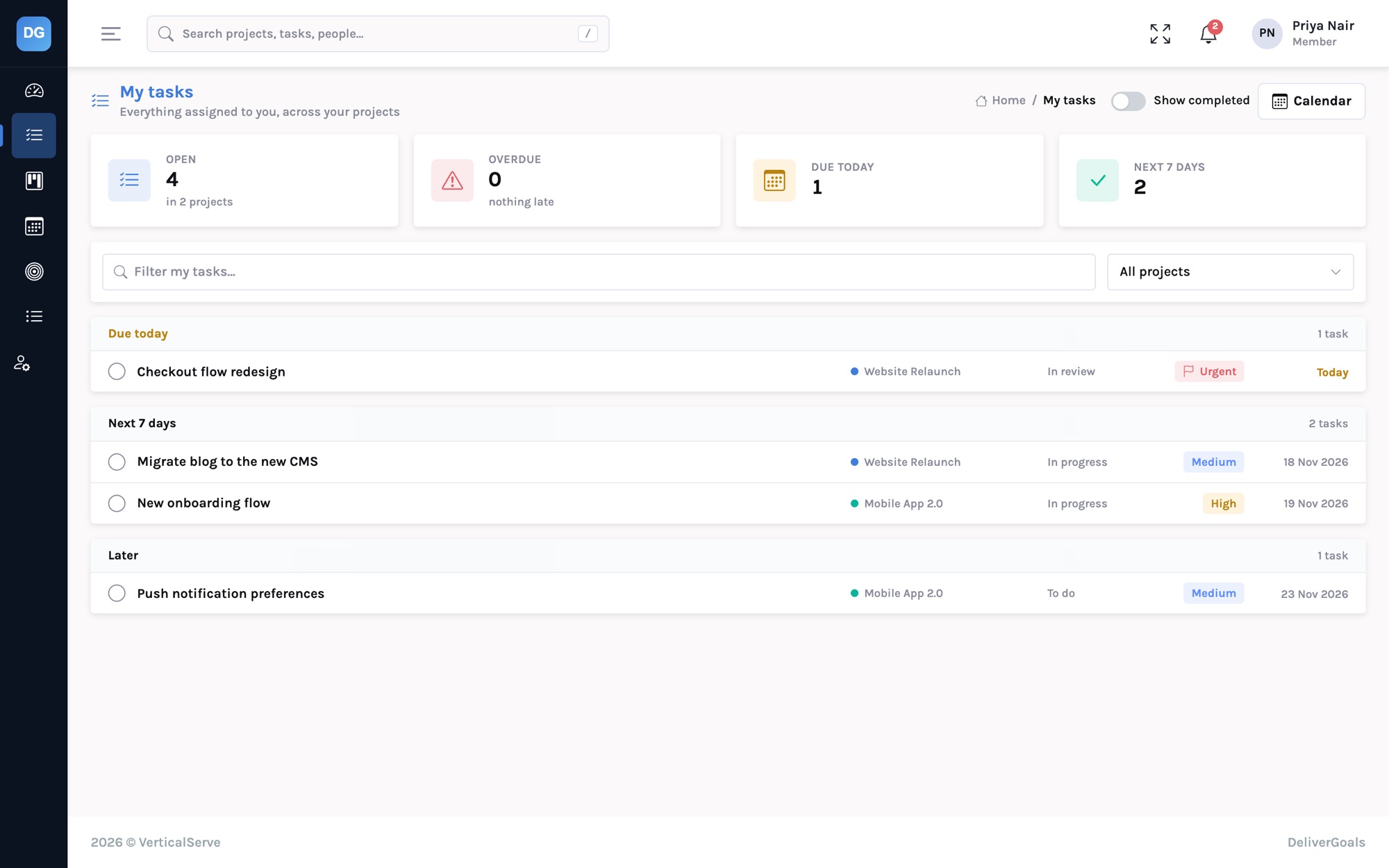
Reading Priya’s day
| Group | Task | Project | What it tells her |
|---|---|---|---|
| Due today | Checkout flow redesign | Website Relaunch | Urgent, in review: chase the reviewer, then ship |
| Next 7 days | Migrate blog to the new CMS | Website Relaunch | Due 18 November, already in progress |
| Next 7 days | New onboarding flow | Mobile App 2.0 | Due 19 November, in progress, high priority |
| Later | Push notification preferences | Mobile App 2.0 | Due 23 November, not started |
Two things in that table are hard to see from the boards. The first is that Wednesday and Thursday each have a task due from a different project. Neither manager can see that from their own board. The second is that the one task not yet started is far enough away to leave alone today.
Completing a task from the list
Each row has a circle. Tick it and the task is complete, without opening the project. The task disappears from the list unless Show completed is on. The project manager gets a notification that the task was completed.
The filter box narrows the list by text, and the project selector narrows it to one project when you want to focus.
A morning routine that takes three minutes
- Open My tasks. Read Overdue and Due today. That is today’s work.
- Deal with anything overdue honestly. Either finish it, or open the task and change the date and say why in a comment. A task that stays overdue for a week teaches everyone to ignore red.
- Glance at Next 7 days. Look for two tasks due on the same day.
- Post your stand-up. Today’s line is more or less the Due today group. Blockers are whatever stopped you ticking a circle yesterday.
Open each board, filter by your name, remember what you saw on the last one, and keep a private list to combine them.
Open one page. The work is already combined and sorted by date, and ticking a task there updates its board.
The calendar: the month, across projects
My tasks is a list for today and this week. The calendar is for looking further ahead. It is a month grid with every due date from the projects you can see. Completed tasks are struck through, overdue ones are red, and milestones carry a diamond.
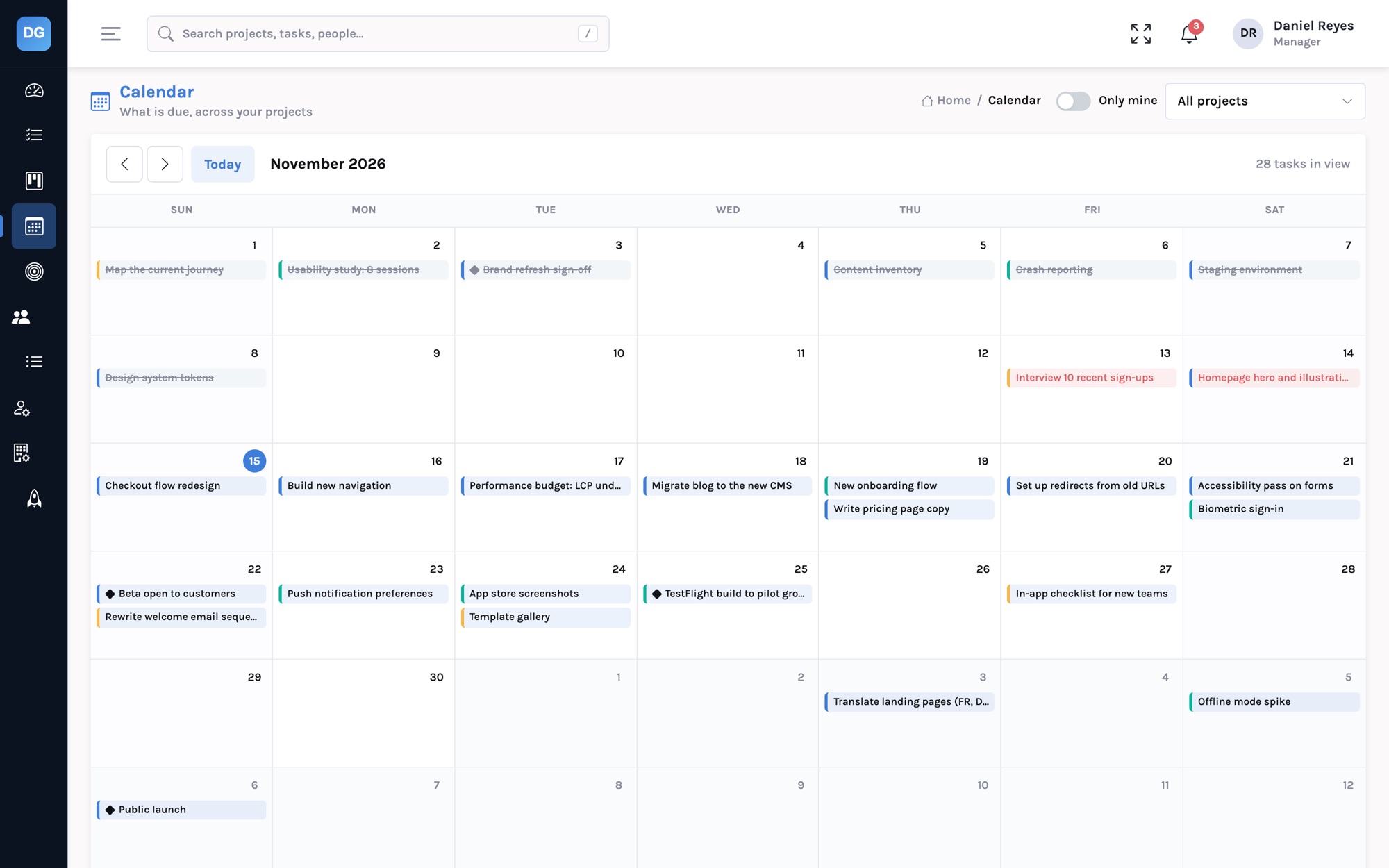
Two controls at the top change what it shows:
- Only mine hides everything that is not assigned to you. For a member, that turns the calendar into a month view of My tasks.
- The project filter shows one project’s dates, which is useful before a client call.
The calendar is where a crowded week shows up before it arrives. In the demo, the week of 15 November has a due date on every day, with two tasks on the 19th and two on the 21st, and a milestone on the 22nd.
On a phone
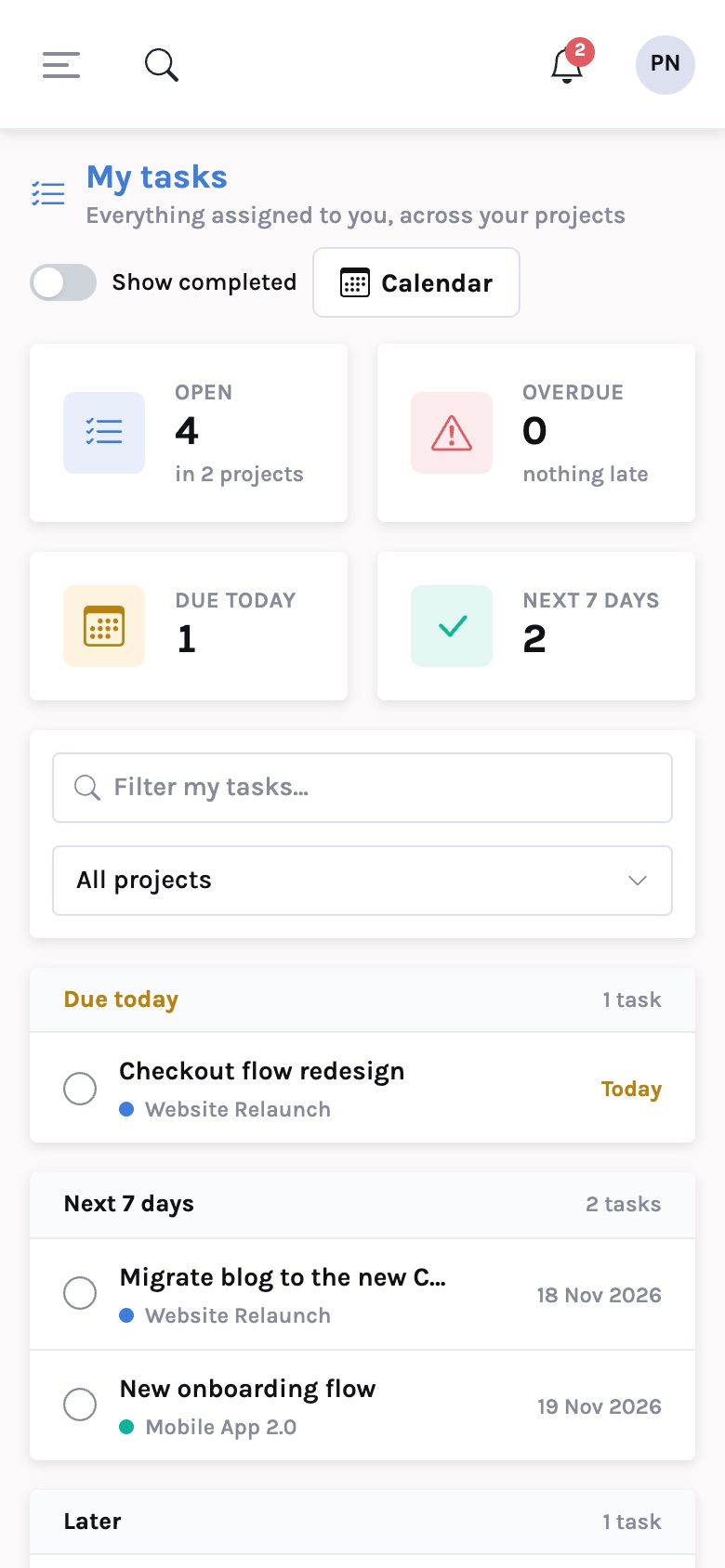
My tasks is the page people most often open away from a desk. DeliverGoals has no native mobile apps; the pages are responsive and work in a phone’s browser. At phone width the four tiles stack two by two and each task keeps its project and date.
What these views do not do
The optional morning digest emails what is overdue, due today and due soon; otherwise due work shows in My tasks and on the calendar. A task can repeat (weekly, monthly or every few days); the next one appears when you complete it. The calendar shows due dates in a month grid.
For managers: what to ask of the team
My tasks only works if tasks have an assignee and a due date. Three rules are enough:
- Every task that has left the backlog has one assignee.
- Every assigned task has a due date, even a rough one. A task with no date lands in the No date group, which is where work goes to be forgotten.
- Dates are changed on the task, with a comment, not in conversation.
With those in place, each person starts the day from one page and the calendar shows the month as it really is. The feature page for Timeline, calendar & My tasks has the full detail; the previous post covers the timeline.