A project tool holds client names, plans, dates and who is struggling. It is worth an hour of an admin’s time to lock it down properly. DeliverGoals keeps every company’s data apart and checks every request against the person making it (see how one company’s work is kept separate); this post covers the controls an admin switches on and reads, in the order we suggest.
The examples are from Northwind Studio, the fictional demo workspace, where Maya Okafor is the admin.
1. Turn on two-factor sign-in for yourself
A stolen or reused password is still the most common way into a SaaS account. Two-factor sign-in adds a second step: after the password, a six-digit code from an authenticator app on your phone (Google Authenticator, Microsoft Authenticator, 1Password, Authy or similar).
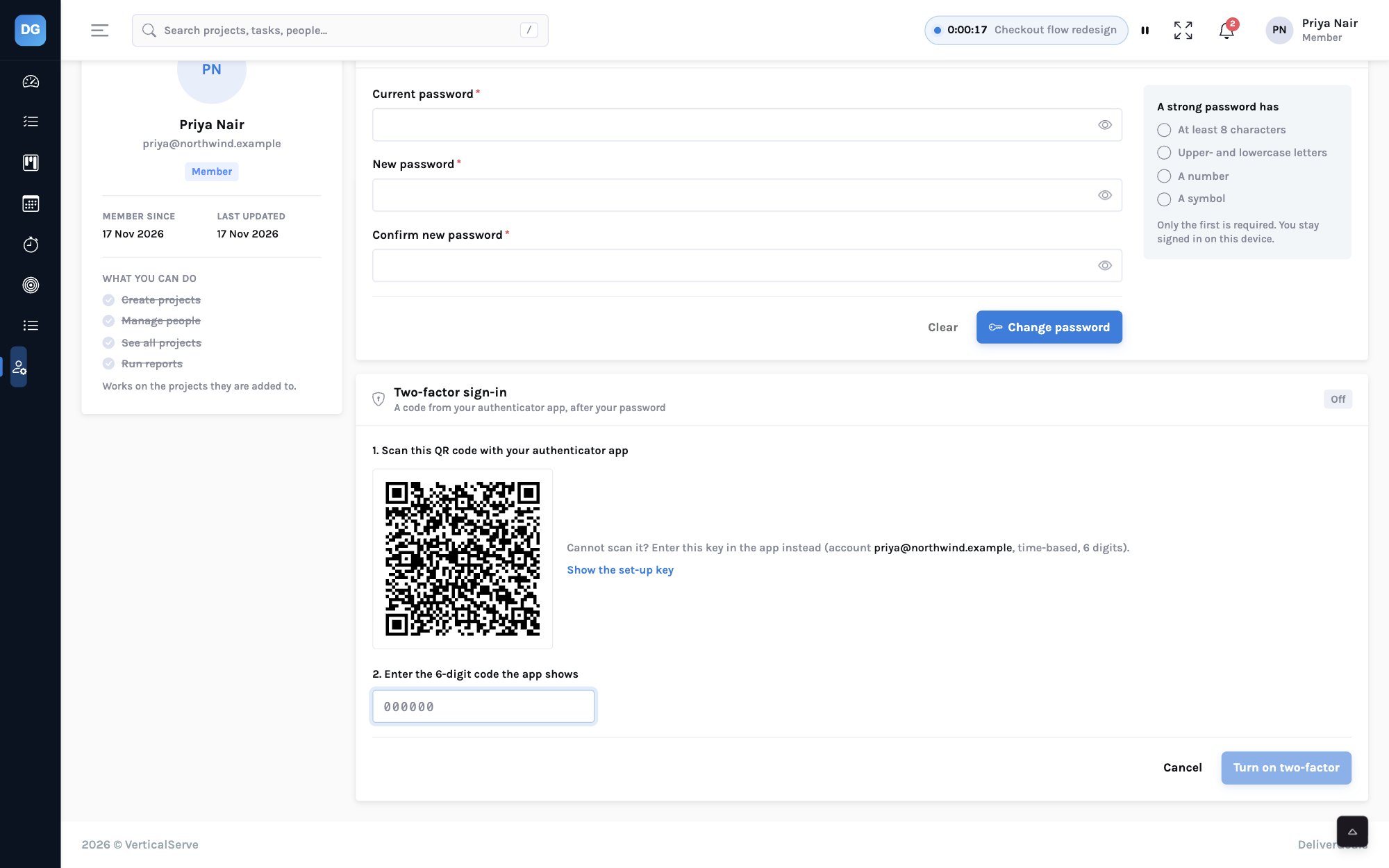
Set it up from your profile: confirm your password, scan the QR code (or type the key), and enter the code the app shows. You then get ten recovery codes, each usable once, for the day the phone is lost. Download them or copy them somewhere safe; they are not shown again, and you can make a fresh set at any time with a current code.
From then on, signing in with your password asks for the code. A wrong code counts towards the account lockout, and the sign-in step expires after five minutes or five wrong codes.
2. Require it for managers, then everyone
Under Company settings, the Sign-in security panel sets the company’s policy: optional for everyone, required for managers and admins, or required for everyone. DeliverGoals will not let you require it for a group you are in until you have set it up yourself, so an admin cannot lock themselves out by accident.
People the policy covers who have not set it up can still sign in, but every page sends them to the set-up first; nothing else works until they finish. Accounts that sign in only with Google are not asked for a second code: Google verifies them, including their own 2-Step Verification, so turn that on in your Google Workspace too.
- Day 1You enrol
Set up two-factor on your own profile and store the recovery codes.
- Day 2Managers
Switch the policy to “required for managers and admins” and tell them it is coming.
- Week 2Everyone
Switch to “required for everyone”. People are walked through the set-up at their next page load.
3. Know how to reset a lost phone
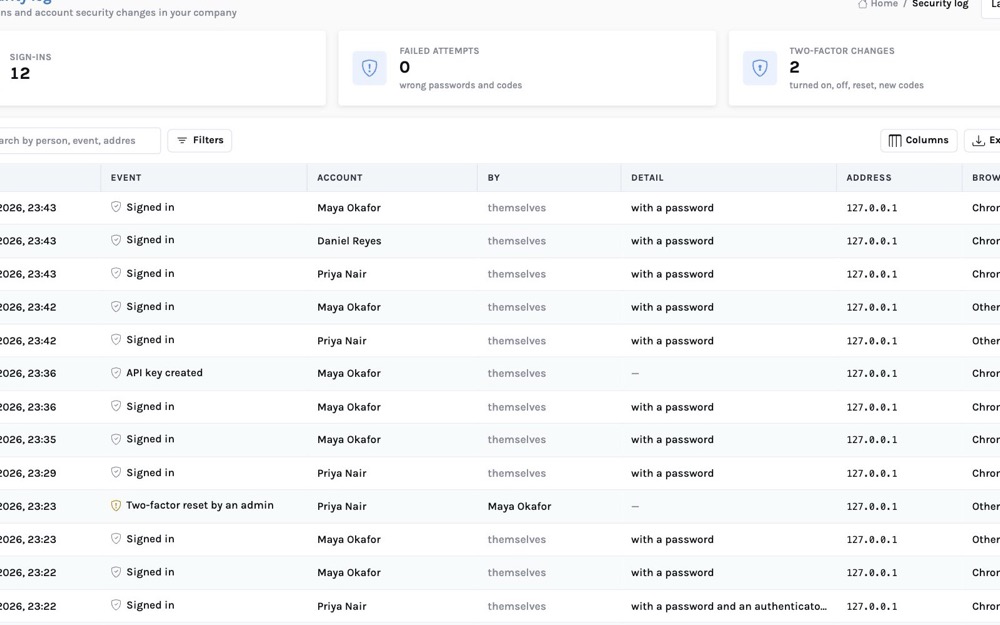
When someone loses both their phone and their recovery codes, an admin opens Users, finds the person (the Two-factor column shows who has it on) and chooses Reset two-factor. They can then sign in with their password and set it up again. Confirm who is asking before you do it: a reset request is a classic social-engineering move. Every reset is written to the security log.
4. Read the security log
The Security log (admins only) lists sign-ins, failed sign-ins and wrong codes, two-factor turned on, off or reset, new recovery codes, password changes and resets, “sign out everywhere”, API keys created and revoked, and policy changes, with the account, who acted, the address and the browser. It never contains a password, code, token or key.
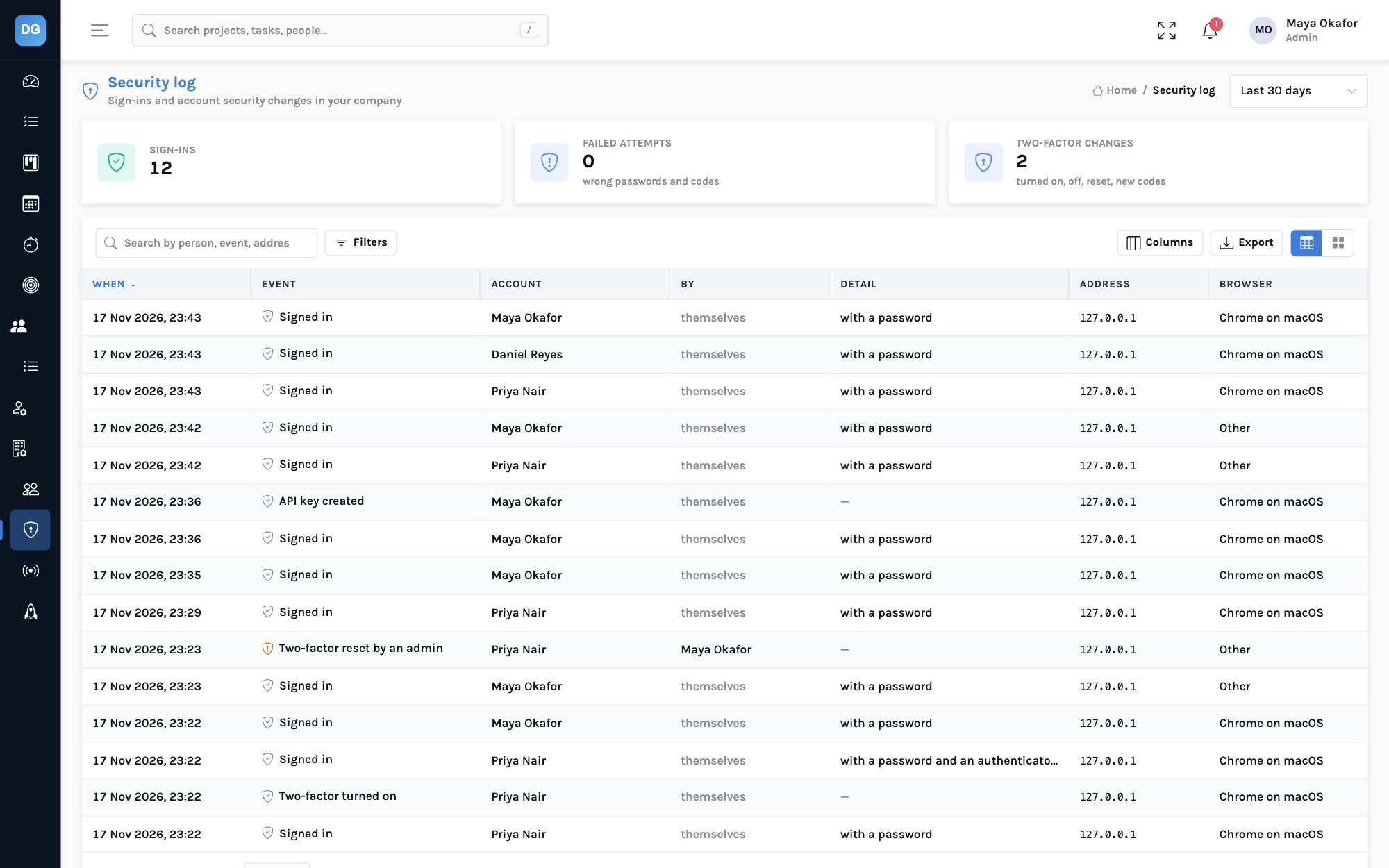
Five minutes a week is enough. Look for a run of failed attempts on one account, sign-ins from an address or browser that does not fit the person, two-factor turned off, and keys you did not expect. Filter, search and export are there when you need evidence.
5. Give scripts their own keys, with the least they need
Scripts and other tools should never use someone’s password. Each person can create API keys under their settings. A key acts as its owner, so it sees exactly what they can see, but it is narrower than a sign-in:
- Read only unless you choose read and write;
- never able to reach sign-in, two-factor, the security log, settings, API keys, webhooks, imports or the AI features;
- an optional expiry; shown once, and only a hash is kept;
- limited separately, so a busy script cannot use up its owner’s allowance.
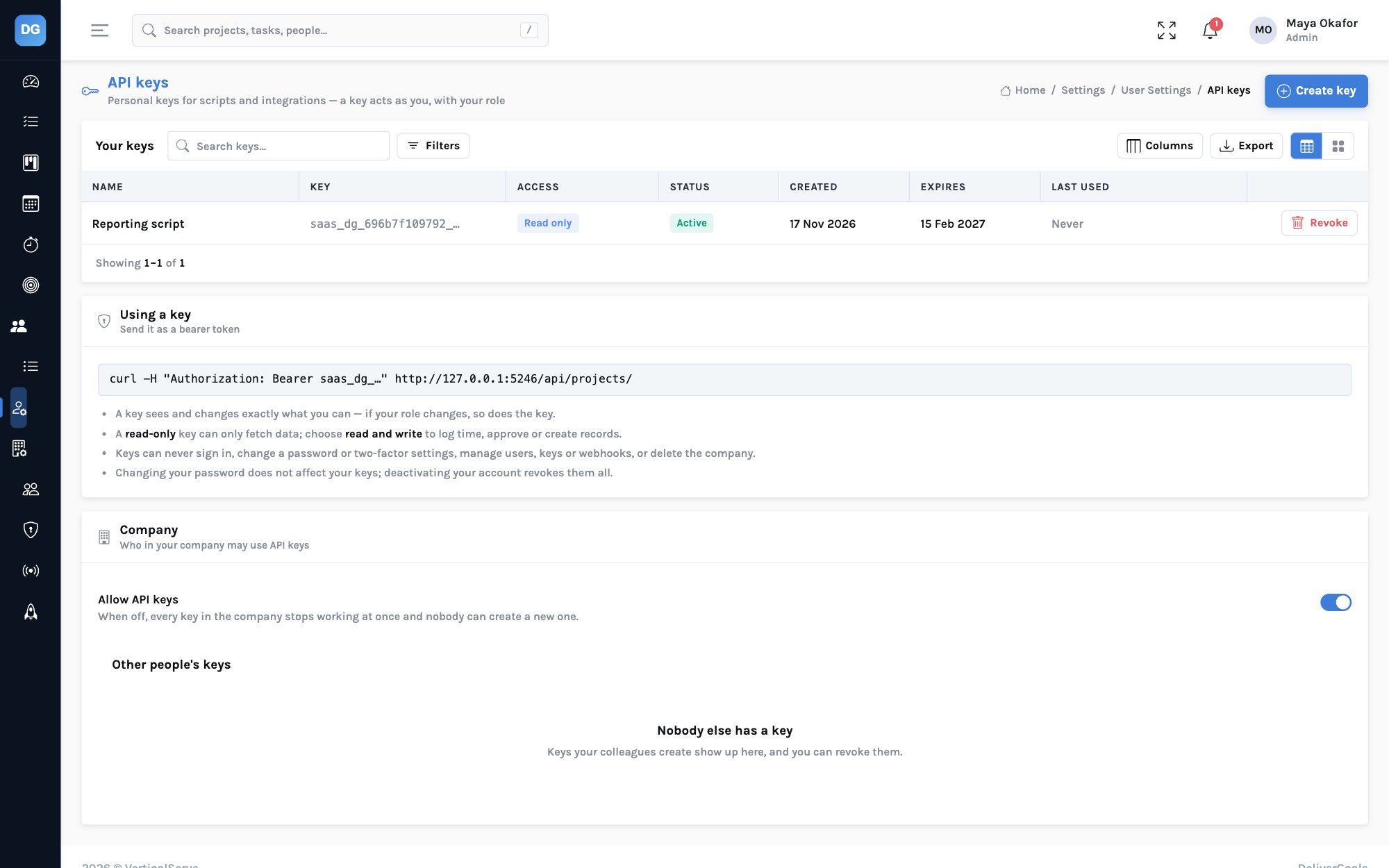
Admins see every key in the company and can revoke any of them, and the Allow API keys switch stops all keys immediately, for example while you investigate something. Deactivating a person stops their keys too.
6. Verify every webhook
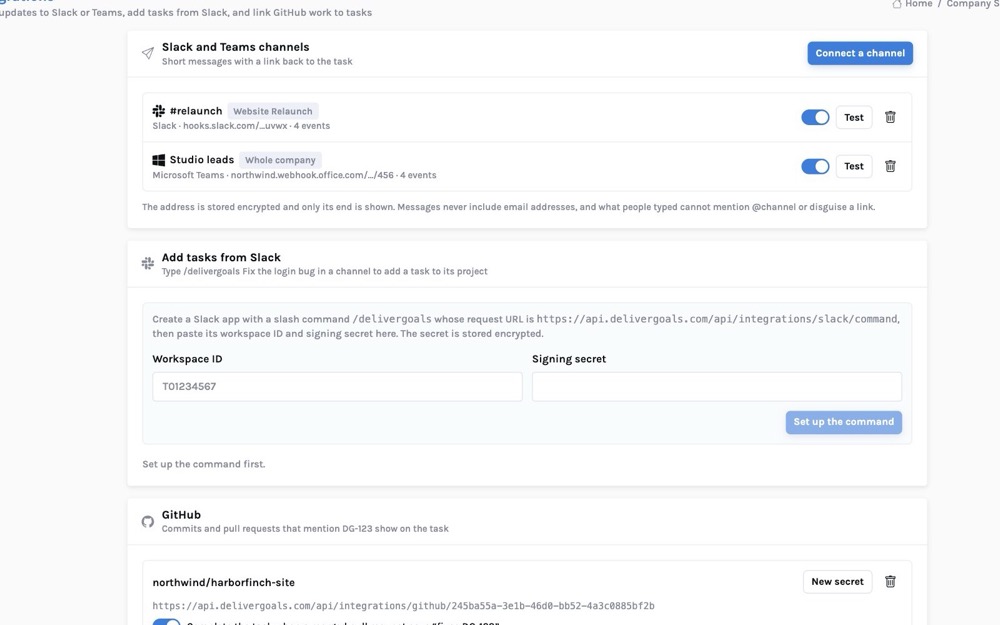
Webhooks (admins only) tell another system when tasks are created, assigned, moved or completed, comments are added, projects are created, goals get check-ins and time is logged. Each delivery is signed with the endpoint’s secret, and the receiving side should check the signature before trusting the body:
import hashlib, hmac, time

def verify(secret: str, header: str, body: bytes, tolerance: int = 300) -> bool:
    # header: X-DeliverGoals-Signature, e.g. "t=1763452800,v1=5f2b..."
    parts = dict(p.split("=", 1) for p in header.split(","))
    t, v1 = int(parts["t"]), parts["v1"]
    if abs(time.time() - t) > tolerance:          # refuse old replays
        return False
    expected = hmac.new(secret.encode(), f"{t}.".encode() + body, hashlib.sha256).hexdigest()
    return hmac.compare_digest(expected, v1)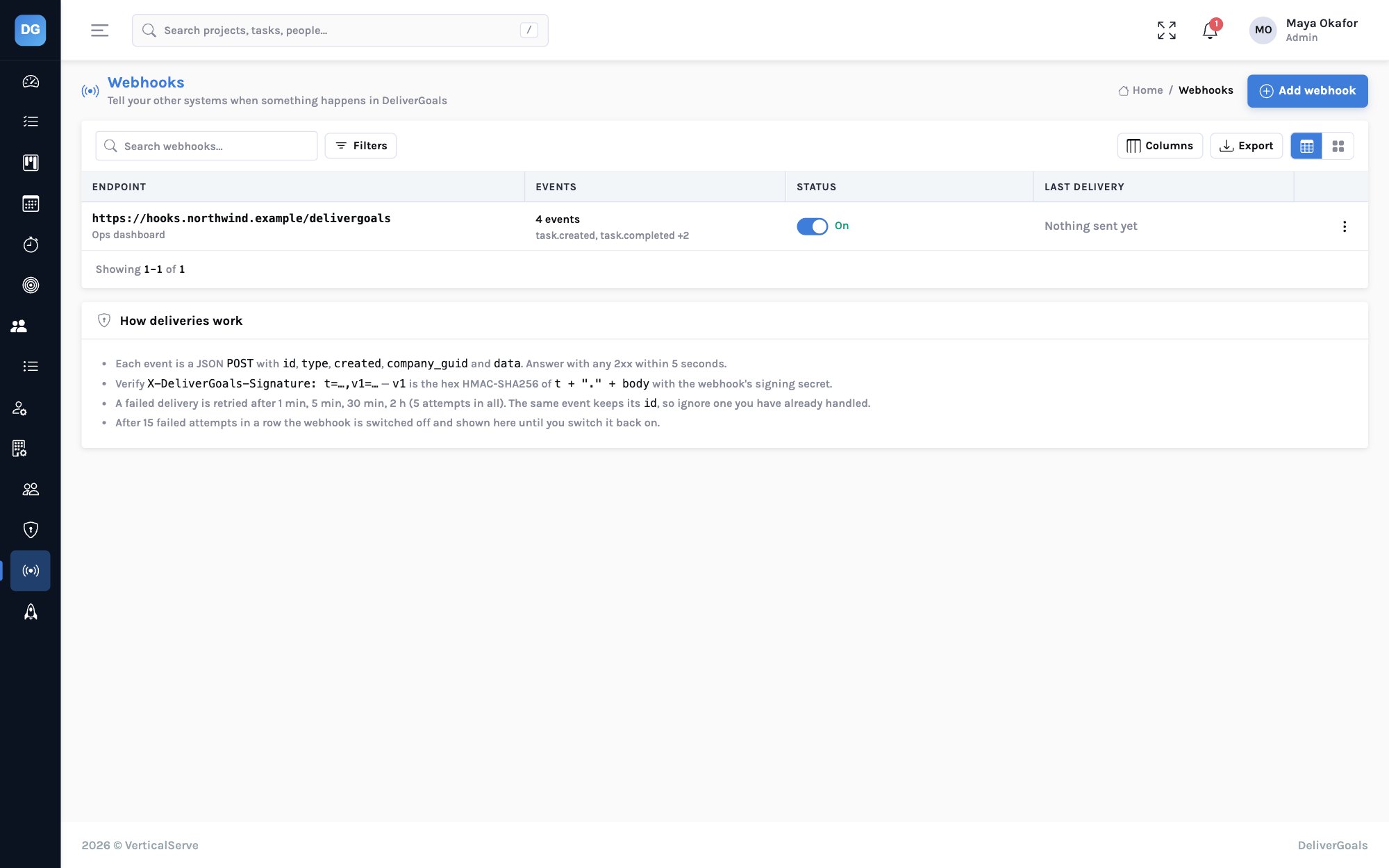
On our side, webhook addresses must be https and resolve only to public internet addresses; the connection is pinned to the checked address, redirects are not followed, and each attempt gives up after five seconds. A failed delivery is retried after 1, 5 and 30 minutes and 2 hours; after 15 failures in a row the webhook is switched off and flagged. Payloads carry names and ids, never email addresses. Rotate the secret if it may have leaked.
7. Email that people can trust
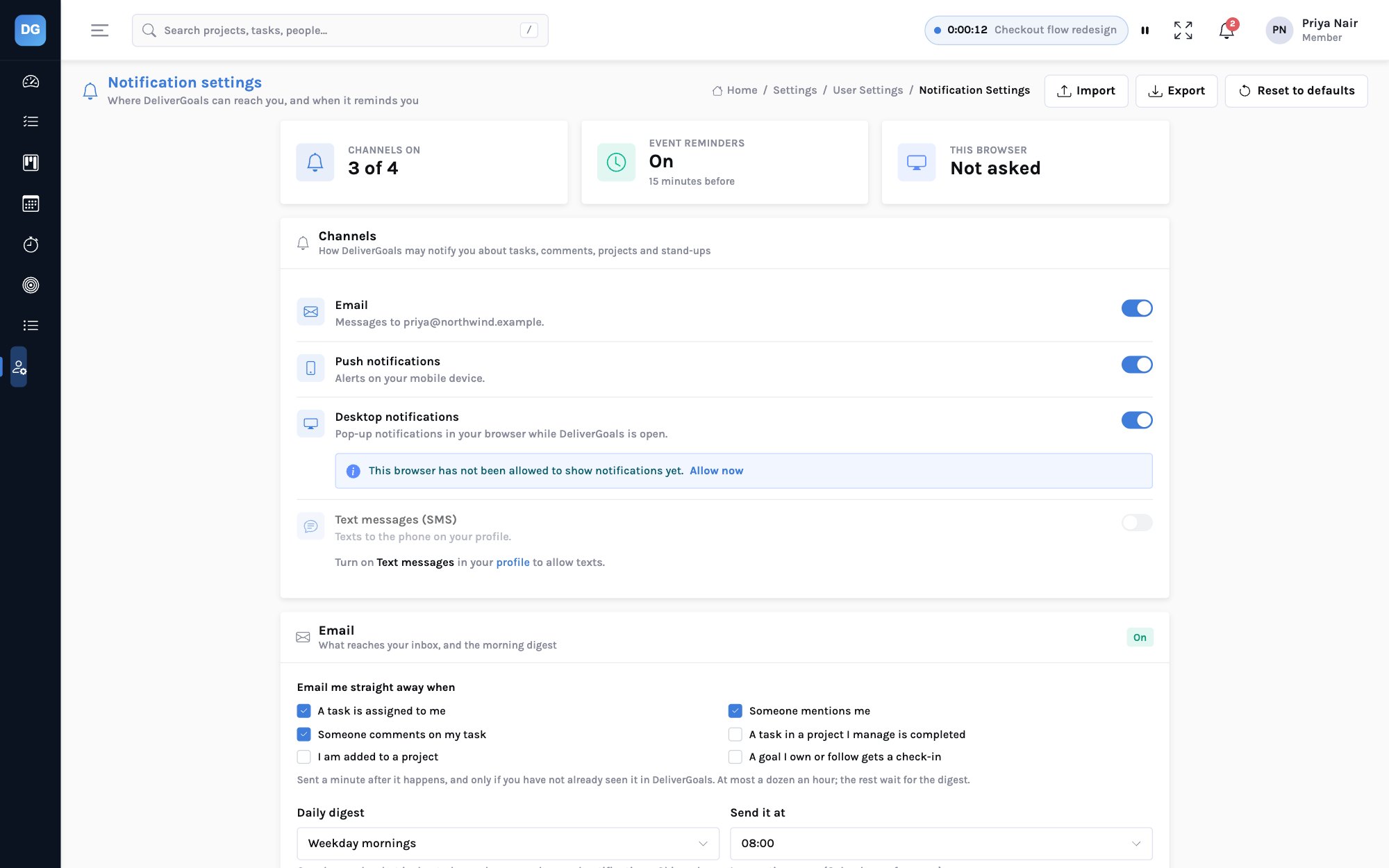
Notifications can be emailed, and people get a morning digest of their own work if they want it. Each person chooses which kinds are emailed; an email is sent a minute after the notification, and not at all if they have already read it in the app; there is a cap of about a dozen an hour. Every email has a one-click unsubscribe link, and all text from users is escaped, so a task name cannot smuggle a link or markup into someone’s inbox.
What each control is for
| Threat | Control | Where |
|---|---|---|
| A stolen or reused password | Two-factor sign-in; company policy; lockout after repeated failures | Profile; Company settings |
| A lost phone | Ten single-use recovery codes; admin reset, logged | Profile; Users |
| Unnoticed account misuse | Security log of sign-ins, failures and changes | Security log |
| A leaked script credential | Scoped, expiring, revocable API keys; company kill switch | API keys |
| A forged or replayed event | HMAC signature with a timestamp on every webhook | Your receiver |
| Our servers being aimed at your network | Public https addresses only, pinned, no redirects | Webhooks |
| Email fatigue or abuse | Per-kind choices, hourly cap, one-click unsubscribe | Notification settings |
Where it stops
There is no SSO or SAML, no SCIM provisioning and no IP allow-lists. Two-factor applies to password sign-in; Google accounts rely on Google’s own verification. Security events are kept for a year and are not streamed to a SIEM (a webhook can carry the work events, not the security ones). DeliverGoals holds no SOC 2 or ISO certification. If one of these is a requirement, ask us at contact@verticalserve.com.
The full list of measures is on People & security. For time and billing data, see time tracking without timesheets.