A weekly timesheet asks people to remember on Friday what they did on Monday. The answers are rounded, late and detached from the work. When the work already lives on a board, there is a simpler place to keep the hours: on the task itself, at the moment the work is done.
That is how time tracking works in DeliverGoals. Time belongs to a task (or, when there is no task, to a project). It is started with a timer or typed in by hand, it adds up into each person’s week, and managers read it back by person, project or task. There is no weekly form, no submit button and no approval step. This post walks through it on Northwind Studio, the fictional demo workspace, using the figures you can see in the screenshots.
Why time on tasks, not a timesheet
A timesheet answers “how many hours did each person work this week?”. A team on a board usually wants different answers: how long did this task take against what we thought, which tasks ate the week, and how much of it can we bill. All three are answered by time that is attached to tasks. A timesheet can be rebuilt from task time (the week view below is one); task time cannot be rebuilt from a timesheet.
Two ways to record time
The timer
Every task has a Start timer button in its Time section. Once started, the clock sits in the top bar on every page, so it is never forgotten in a closed tab. Click it to add a note or stop it; stopping logs the time on the task.
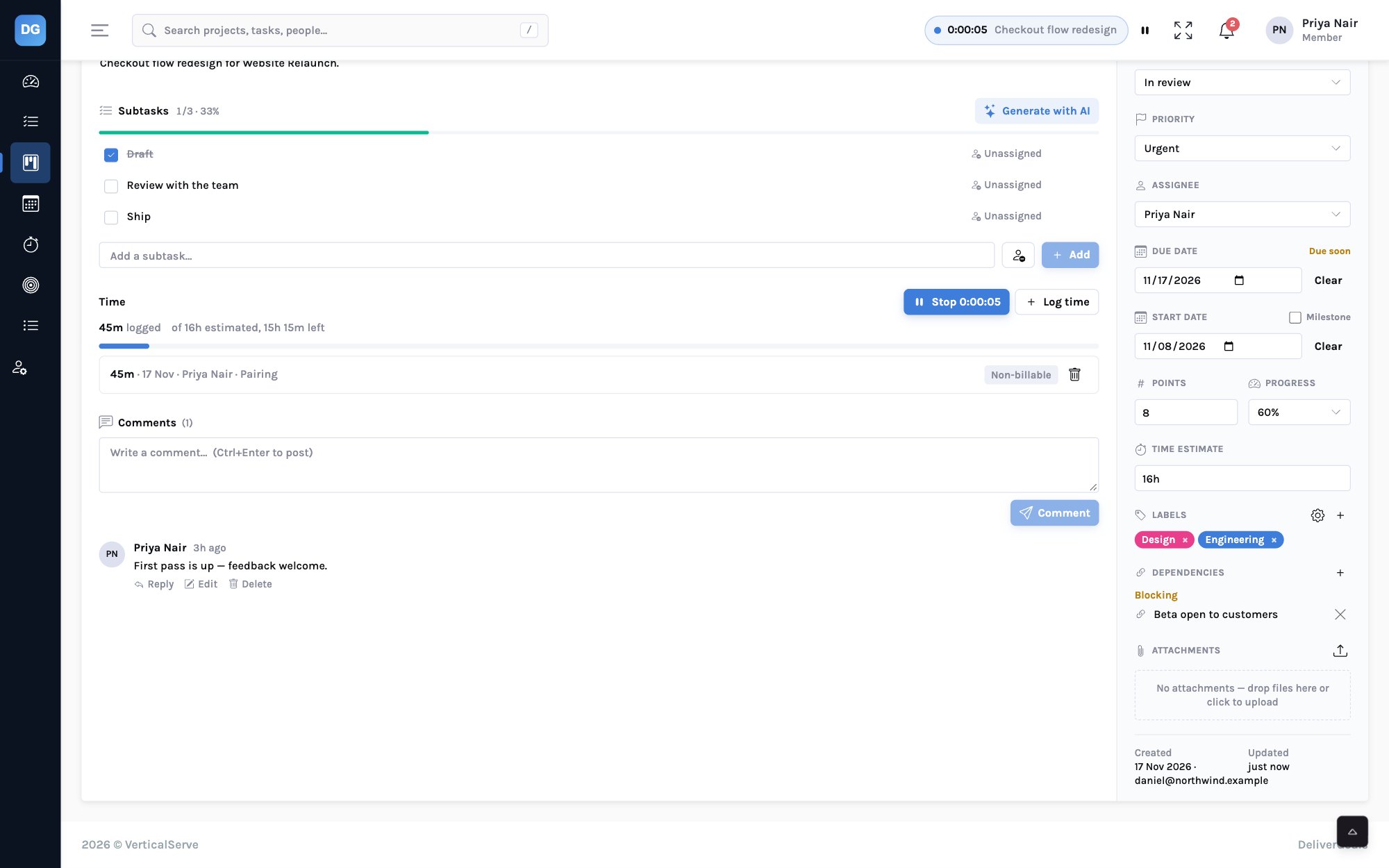
The timer is kept by the server, not the browser: it survives a closed laptop and shows on every device you are signed in on. You can run one timer at a time. Three rules keep it honest:
| Situation | What happens |
|---|---|
| Under a minute | Nothing is logged; the timer is simply cleared |
| Runs past midnight | Split into one entry per day, cut at midnight in your time zone |
| Left running over a weekend | Only the first 24 hours count, and the confirmation says so |
| A day already holds 24 hours | The part that does not fit is left out and reported |
Logging by hand
Log time on the task (or on My time) takes a day, a duration, a note and whether it is billable. The duration box accepts what people actually type: 1:30, 1.5h, 90m, 1h 30m, or a bare 3, which means three hours. Time can be logged up to a year back but not for future days, and no day can hold more than 24 hours across all entries.
Estimates against actuals
A task can carry a time estimate, set in its side panel in the same short format. The Time section then shows what was logged against it, with a bar that turns red when the work runs over and a line saying how much is left or how far over it is. Priya’s checkout redesign is estimated at 16 hours with 45 minutes so far, so it reads 15h 15m left.
Estimates are optional and separate from story points. Points are for relative size in planning; the estimate is for hours, which is what a client or a budget is measured in.
My time: one person’s week
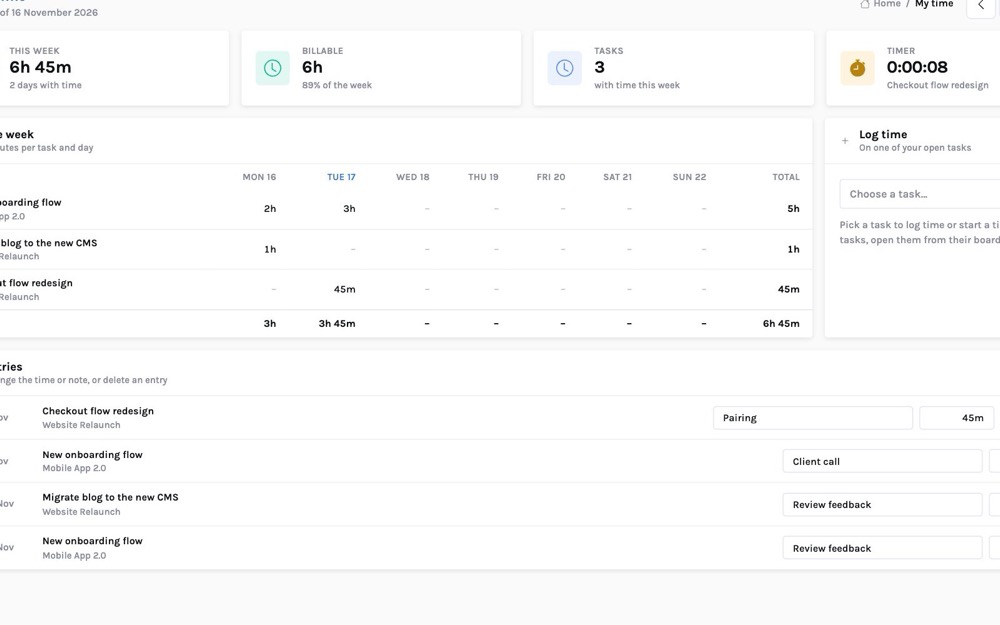
My time in the menu is each person’s week: a grid of tasks by day with totals, the running timer, a form to log time on any of their open tasks, and the week’s entries, where the duration and note can be changed in place or the entry deleted.
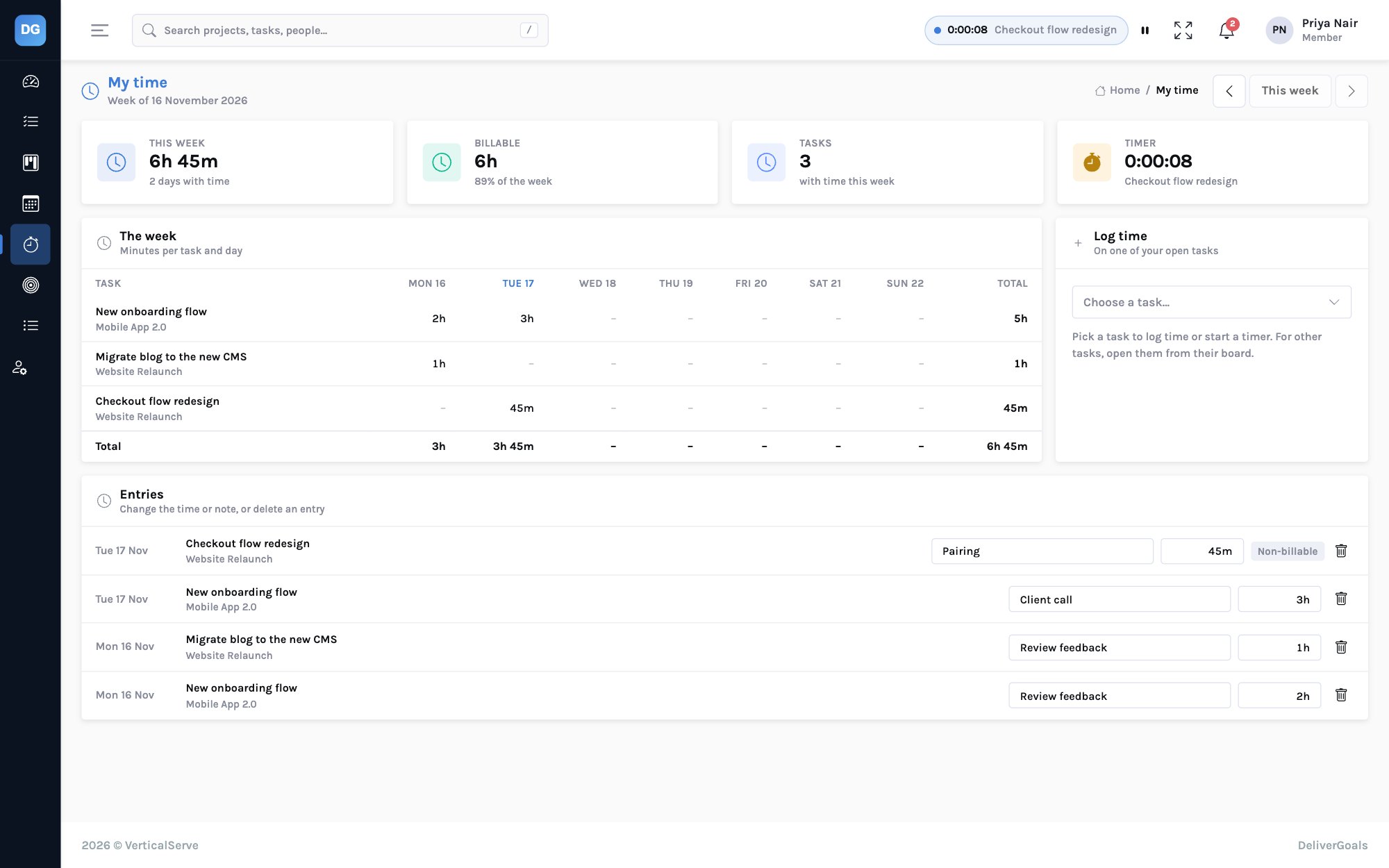
Nothing is submitted. If Priya notices on Wednesday that Monday’s two hours were really on the onboarding flow and not the blog migration, she deletes one entry and logs the other. Her manager sees the corrected figures the next time the report is opened.
The time report
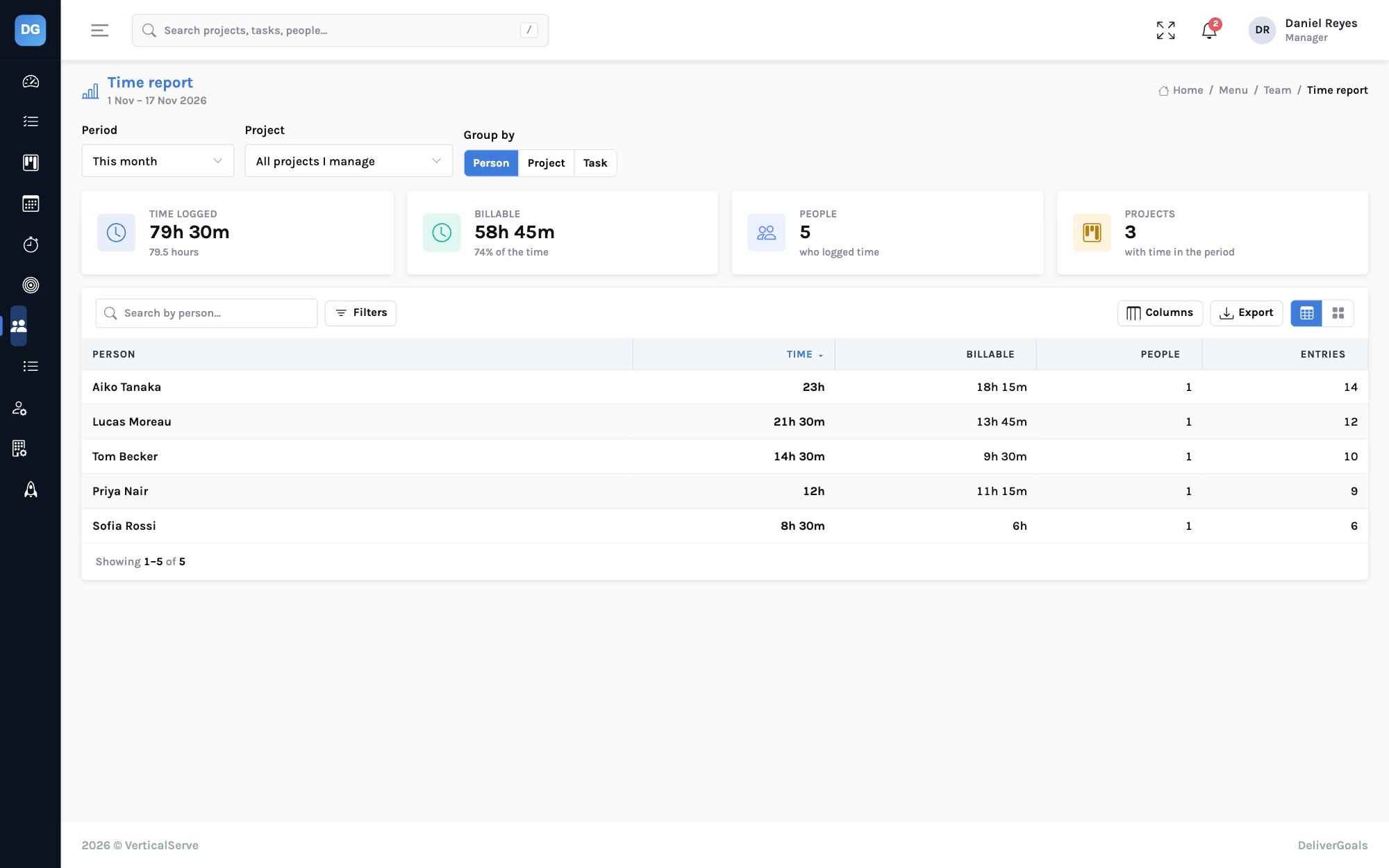
Admins and project managers have a Time report under Team. It covers a period (this week, last week, this month, last month, last 30 days, or custom dates) and the projects they manage, and groups the time three ways.
| Group by | Answers | Columns |
|---|---|---|
| Person | Who spent the time, and how much of it was billable | Time, billable, entries |
| Project | Where the time went across clients and internal work | Time, billable, people, entries |
| Task | Which tasks ate the period, against their estimates | Time, billable, estimate and overrun, people |
Every view exports to CSV, Excel-readable, with hours as decimals, so the figures can go into an invoice or a budget sheet without retyping. In the demo, 58h 45m of the 79h 30m is billable: 74%. Billable is a flag on each entry, set when the time is logged and changeable later by its owner.
Who sees what
| Person | Can see | Can change |
|---|---|---|
| Anyone | Their own entries, and the total time on tasks of projects they are on | Only their own entries |
| A project’s manager | Everyone’s time on the projects they manage, in the report | Only their own entries |
| An admin | Everyone’s time in the company | Only their own entries |
Nobody can edit someone else’s time, admins included. If an entry is wrong, its owner fixes it. Time is also visible to integrations: a time.logged webhook event can feed a billing or BI system the moment an entry is made (see securing your workspace for how webhooks are signed).
What it does not do
There is no weekly submission, approval or locking of past weeks: anyone can correct their own time at any point. There are no hourly rates, costs or invoices; DeliverGoals’ sister product LogTicks covers timesheets, approvals and invoicing. There is no idle detection and no screenshots: the timer runs until you stop it, and the 24-hour cap is the only safety net.
Getting a team started
- Put estimates on the next two weeks’ tasks; skip the rest.
- Ask people to start the timer from the task they pick up, or log time at the end of the day from My time.
- After a week, open the report grouped by task and look only at the overruns. That conversation is where the value is.
Time sits alongside the rest of the cycle described in the complete project cycle; the weekly review it feeds is in a manager’s Monday.