Moving a team from one project tool to another usually fails for small reasons: the dates did not come across, half the tasks lost their owners, or nobody could tell what the import had left out. This post moves one Asana project into DeliverGoals step by step, says exactly what maps to what, and is plain about what stays behind.
The example is Brand Refresh 2027, a fourteen-task project exported from Asana for the Northwind Studio demo workspace. Northwind Studio and everyone in it are fictional; the export was written for the demo using the demo team’s names, plus one outside freelancer, Jonah Pike, who has no account in the workspace. The screens are DeliverGoals as it runs today.
Before you start
- Pick one project. The importer reads one Asana project per file. A workspace with ten projects is ten imports, which is also the sensible way to move: one team at a time.
- Invite your people first. The importer never creates accounts or sends invitations. It matches each Asana assignee to someone already in your DeliverGoals company, by email. Invite the team before you import and almost everyone matches on the first try.
- Be an admin or a manager. Members cannot import. If you are adding to an existing project, you must be able to manage it.
- Tidy the project in Asana. Delete the tasks you would not want to see again. An import is a good moment to leave things behind.
Step 1: export the project from Asana
Open the project in Asana, click the arrow next to the project name and choose Export / Print → CSV. Asana downloads a .csv file with one row per task and per subtask. Do not open it in a spreadsheet and save it again; that can change dates and quoting. Upload the file as it came.
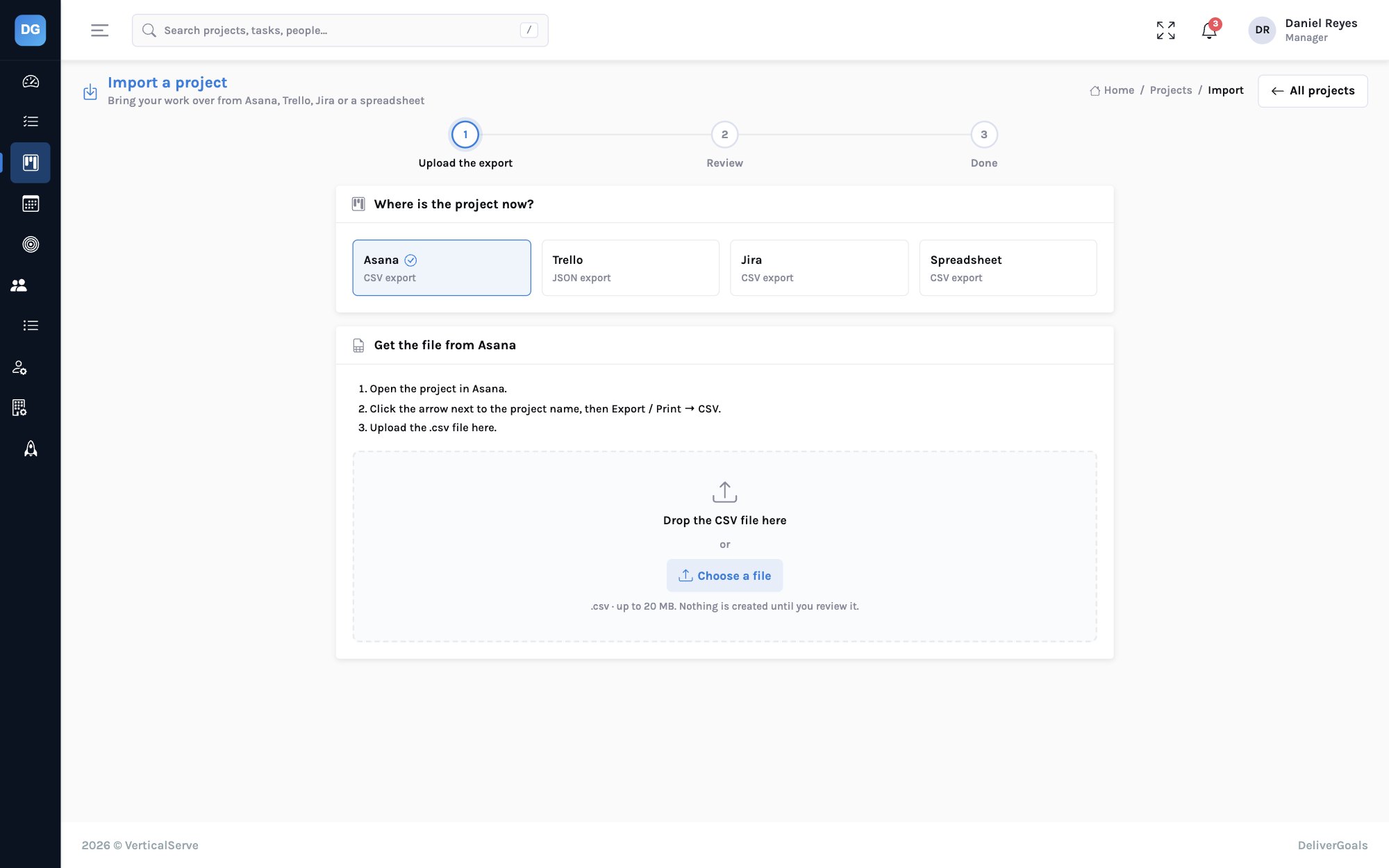
The file may be up to 20 MB and 5,000 tasks. It is read on the server and turned into a draft; nothing is created yet.
What maps to what
| In Asana | In DeliverGoals | Carried? |
|---|---|---|
| Sections | Columns, in the order they first appear | Yes |
| Task name and Notes | Task title and description | Yes |
| Tags | Labels, with a colour each | Yes |
| Subtasks (rows with a Parent task) | Checklist items on the parent, ticked if done | Yes |
| Blocked By (Dependencies) | Dependencies between tasks; a loop is dropped with a warning | Yes |
| Start Date and Due Date | Start and due dates, so the timeline works on day one | Yes |
| A custom field called Priority | Priority: low, medium, high or urgent | Yes |
| Assignee and Assignee Email | A colleague matched by email, which you confirm | You confirm |
| Completed At | Completed, and moved to a Done column if you want | Yes |
| Comments | Not in Asana’s CSV export, so not carried | No |
| Attachments | Not copied; the CSV does not contain the files | No |
| Other custom fields | Not carried | No |
| A task in several projects | Imported once, into the project you are importing | Once |
Step 2: review what was read
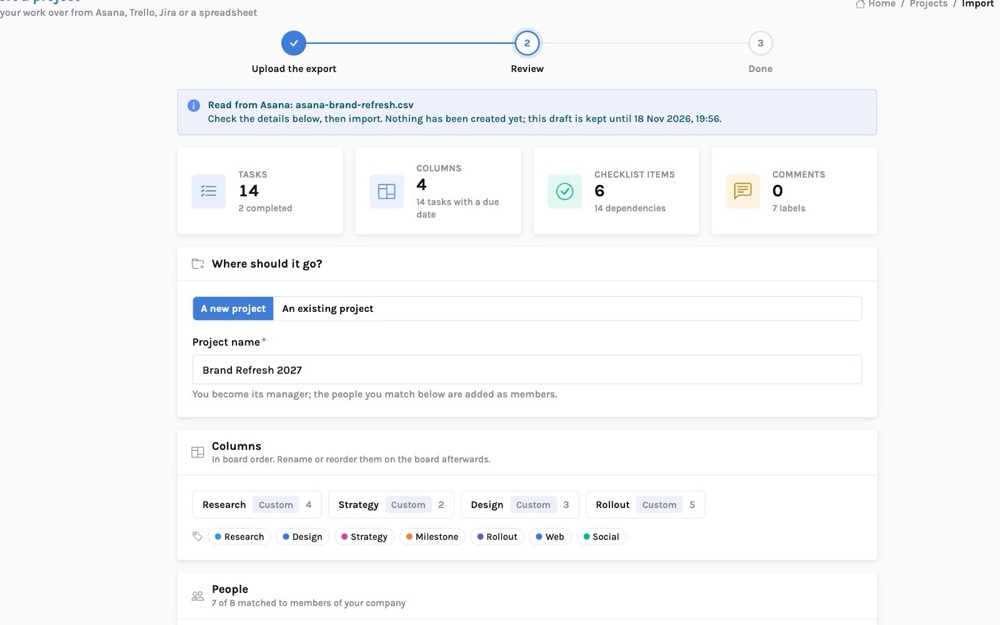
The review page shows the counts first, then asks where the work should go. Brand Refresh 2027 has 14 tasks (2 completed), 4 columns, 6 checklist items, 14 dependencies and 7 labels. It has no comments because Asana’s CSV does not include them.
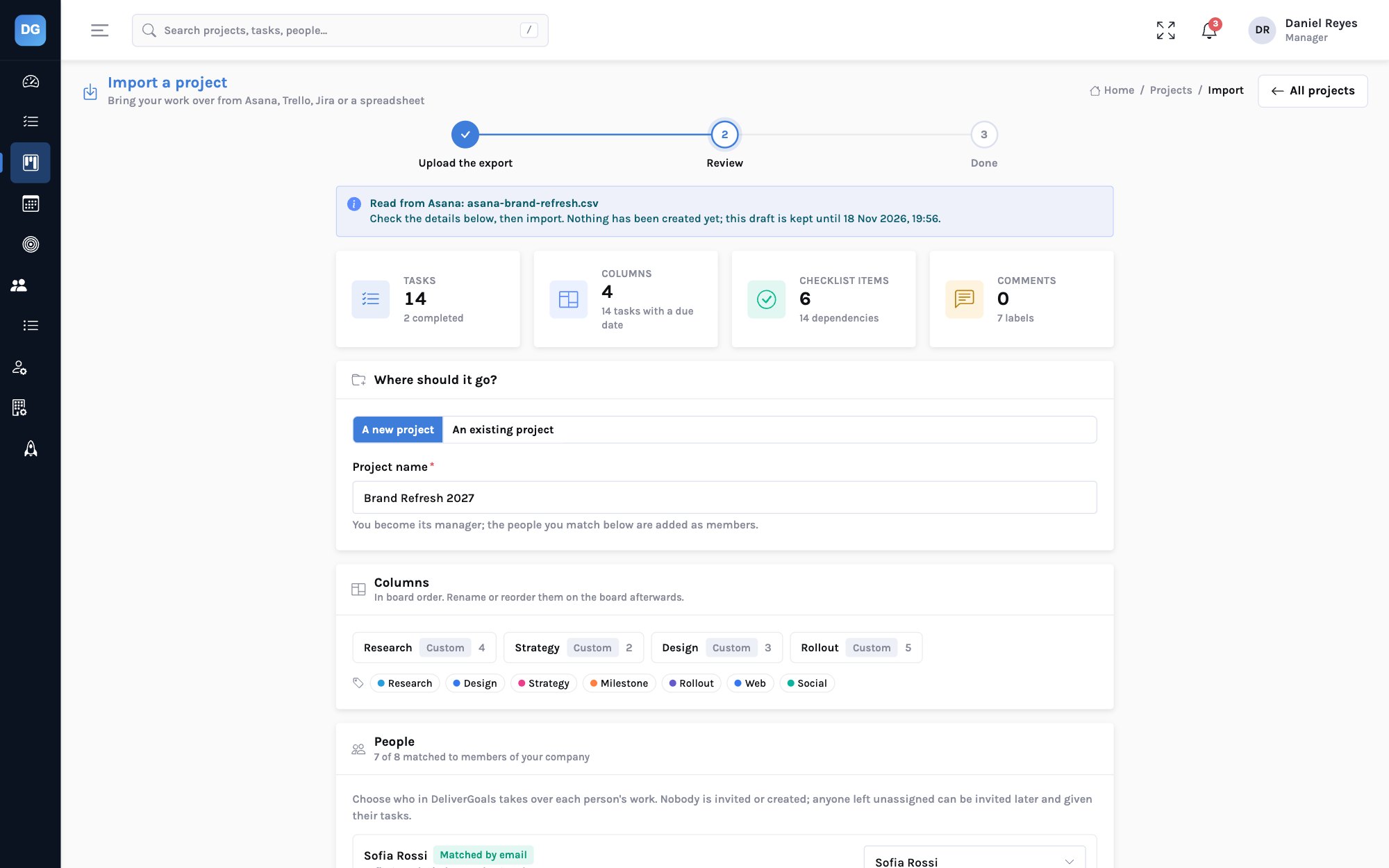
Choose A new project to create one, with you as its manager, or An existing project you manage to add the tasks to it. When you add to an existing project, columns with the same name are reused and the others are added at the end.
Match the people
This is the step that decides whether the import feels finished. Every assignee in the file is listed with the number of tasks they own. Where their Asana email matches someone in your company, the colleague is already chosen and marked Matched by email. Where only the name matches, and exactly one person has that name, it is marked Matched by name. Anyone else is left unassigned.
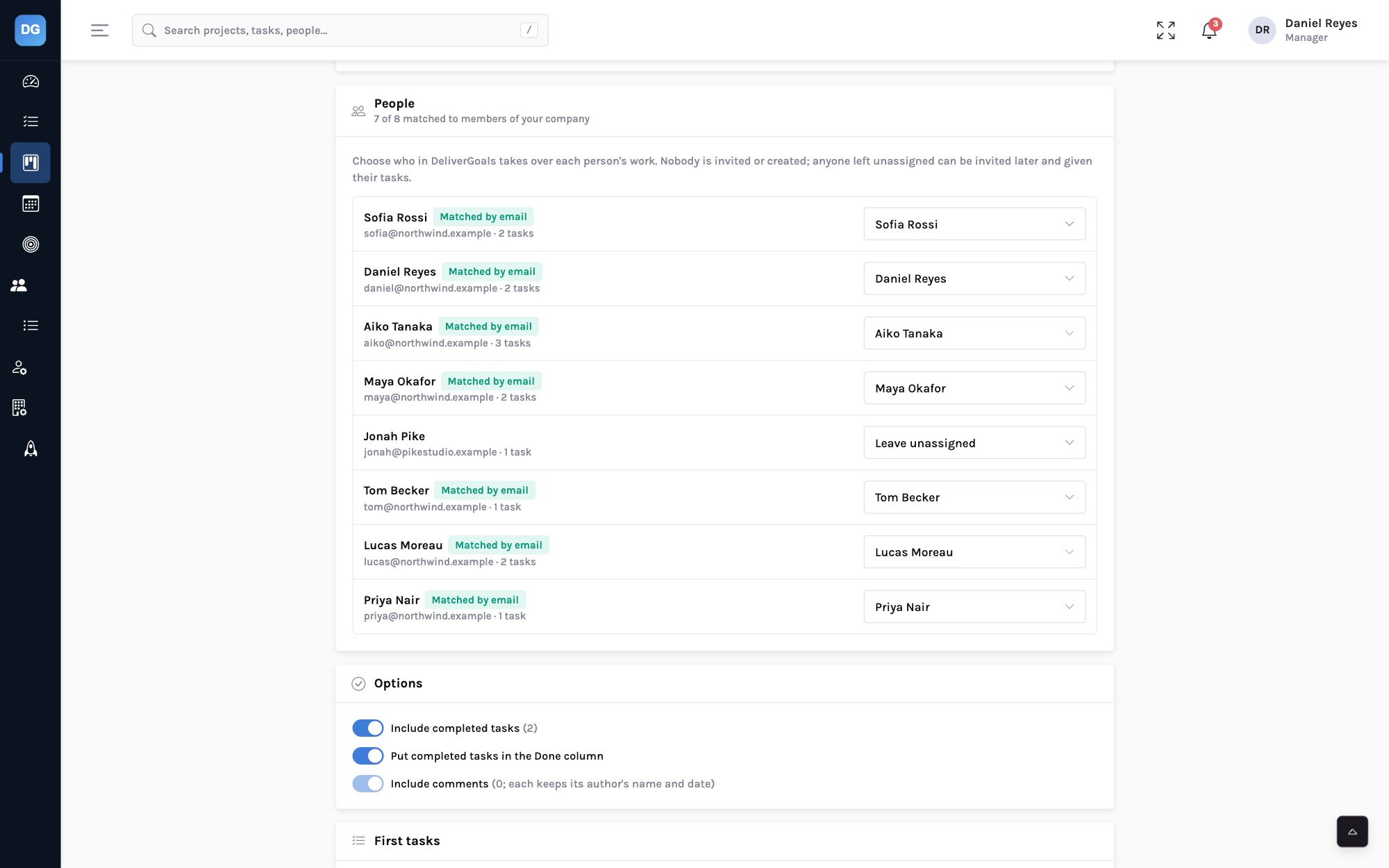
You can change any match. You cannot pick someone outside your company; the server checks every choice again when you press Import. The matched people are added to the project as members and get one notification each for their open tasks.
Options and the first tasks
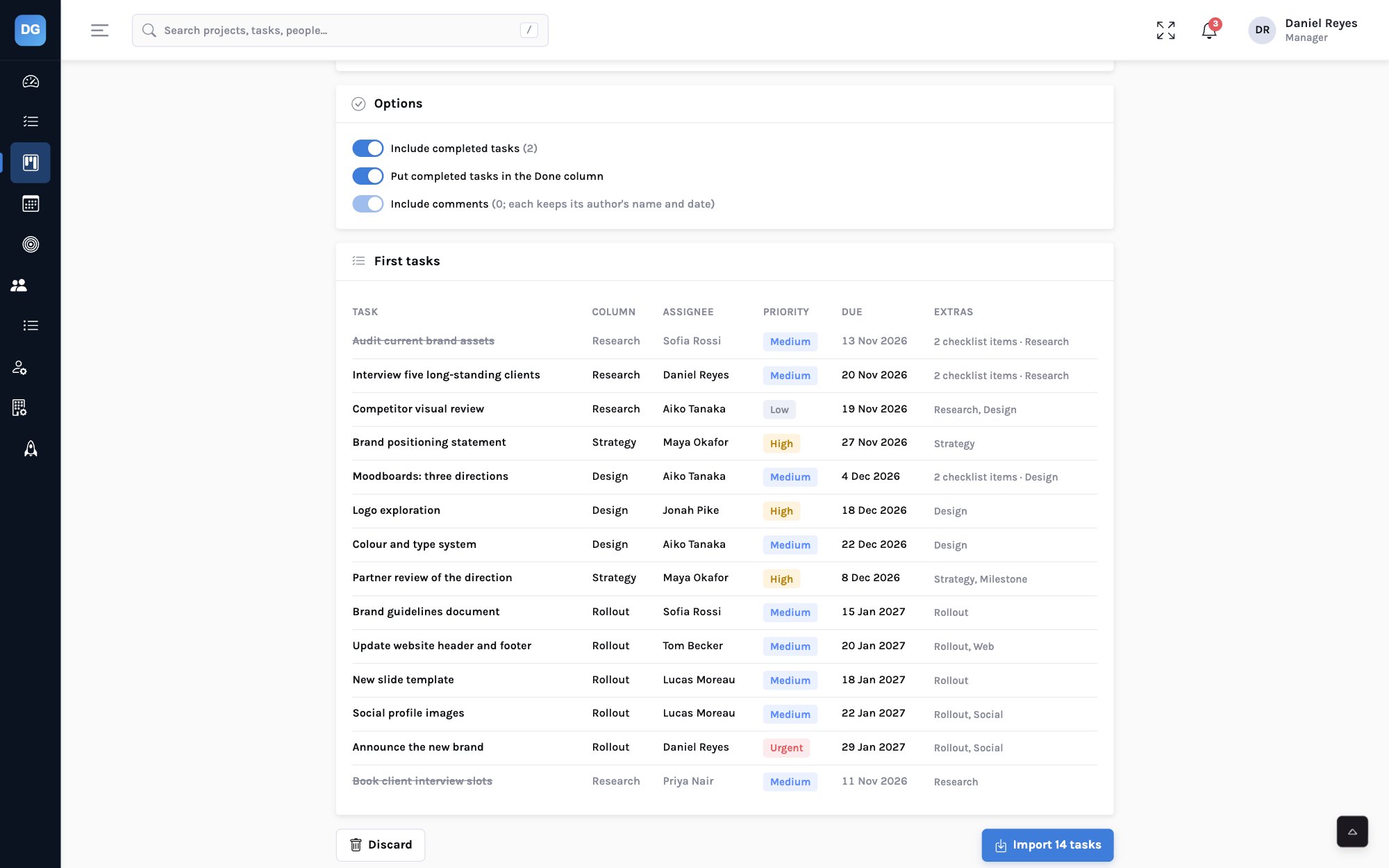
Three switches: include completed tasks, put completed tasks in a Done column, include comments (there are none from Asana). Below them is a table of the first tasks as they will arrive, with column, owner, priority and due date. Read it. If the dates look a month out, the export was saved by a spreadsheet with a different date order; export again from Asana.
Step 3: import
Press Import 14 tasks. Everything is created in one go: the project, columns, labels, tasks, checklists, dependencies, members and notifications. If anything fails, nothing is created, and the draft is still there to try again.
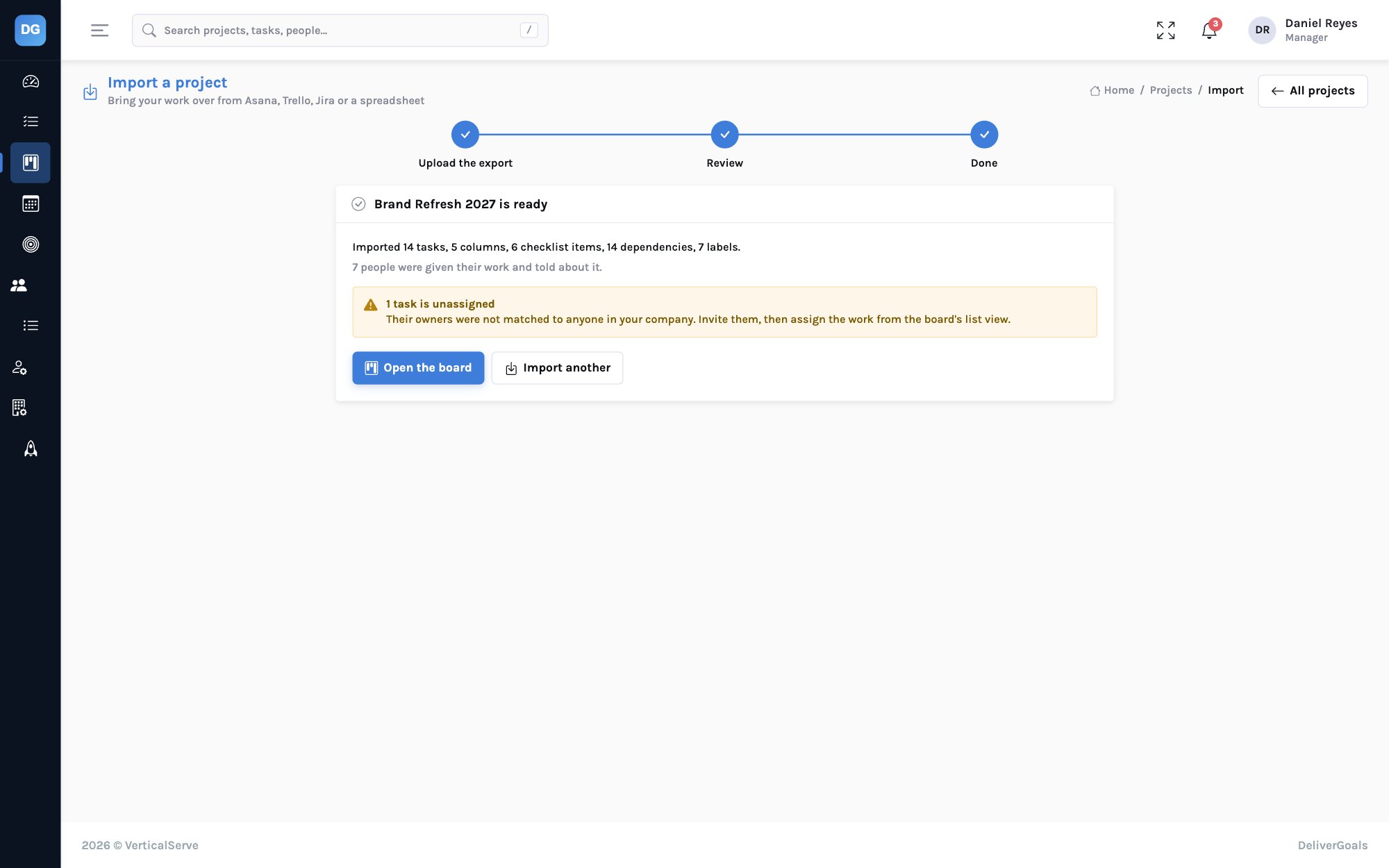
Asana’s four sections became four columns, plus a Done column for the two completed tasks. Tags became labels on the cards. The interview task arrived with its two checklist items, one already ticked.
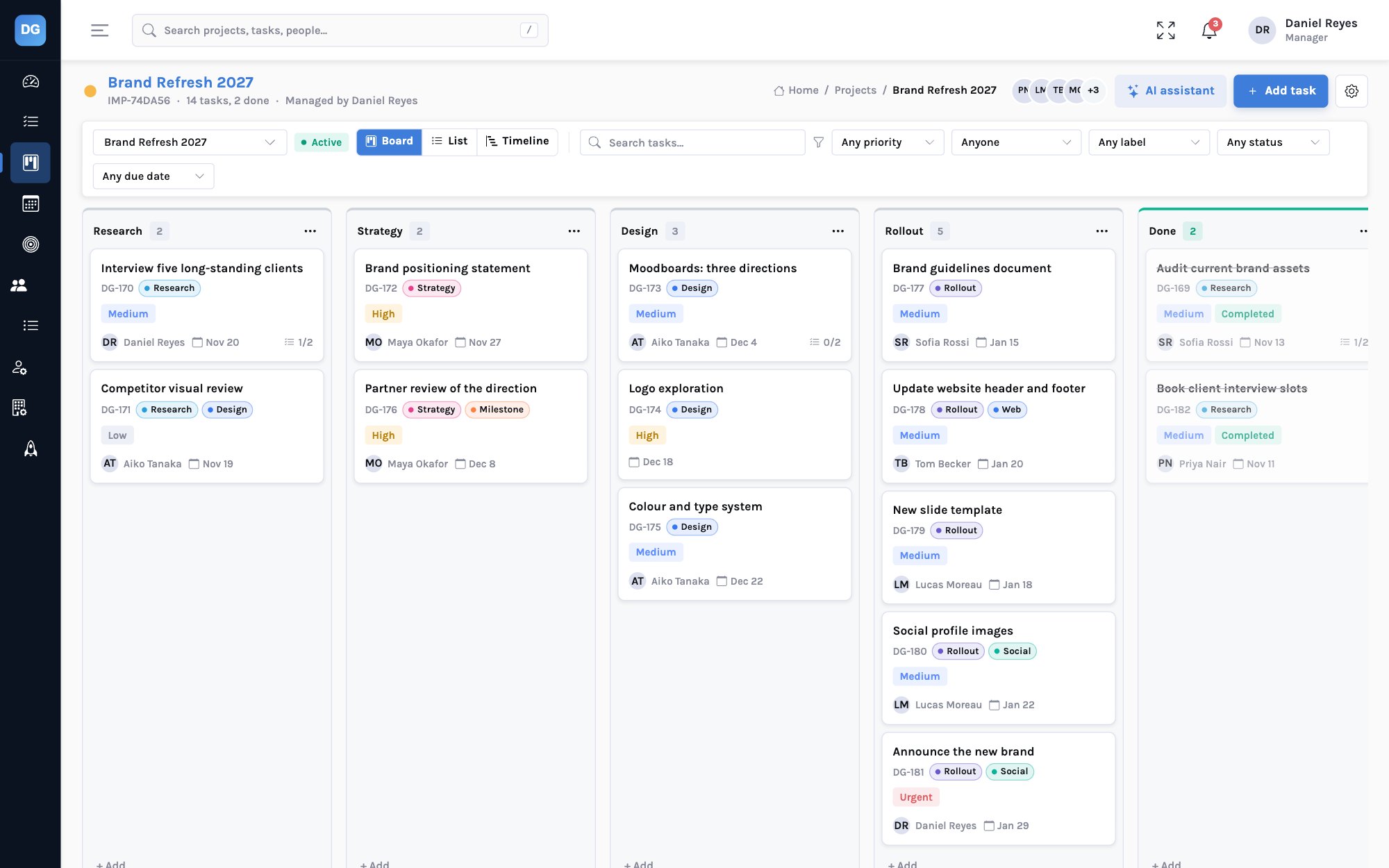
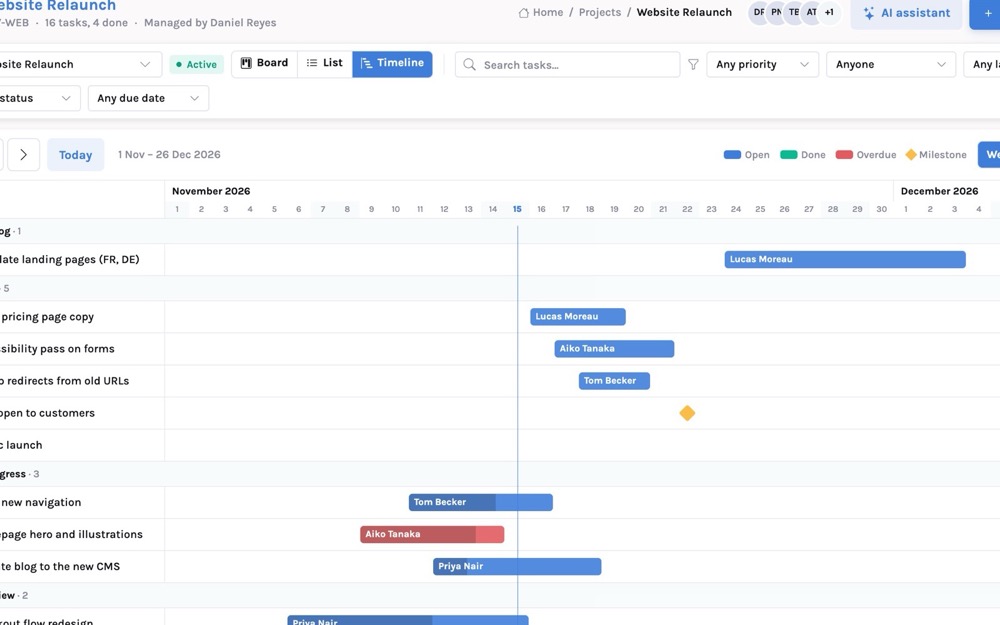
Because Asana had start and due dates, the timeline is useful immediately: research in November, design into December, rollout in January.
After the import
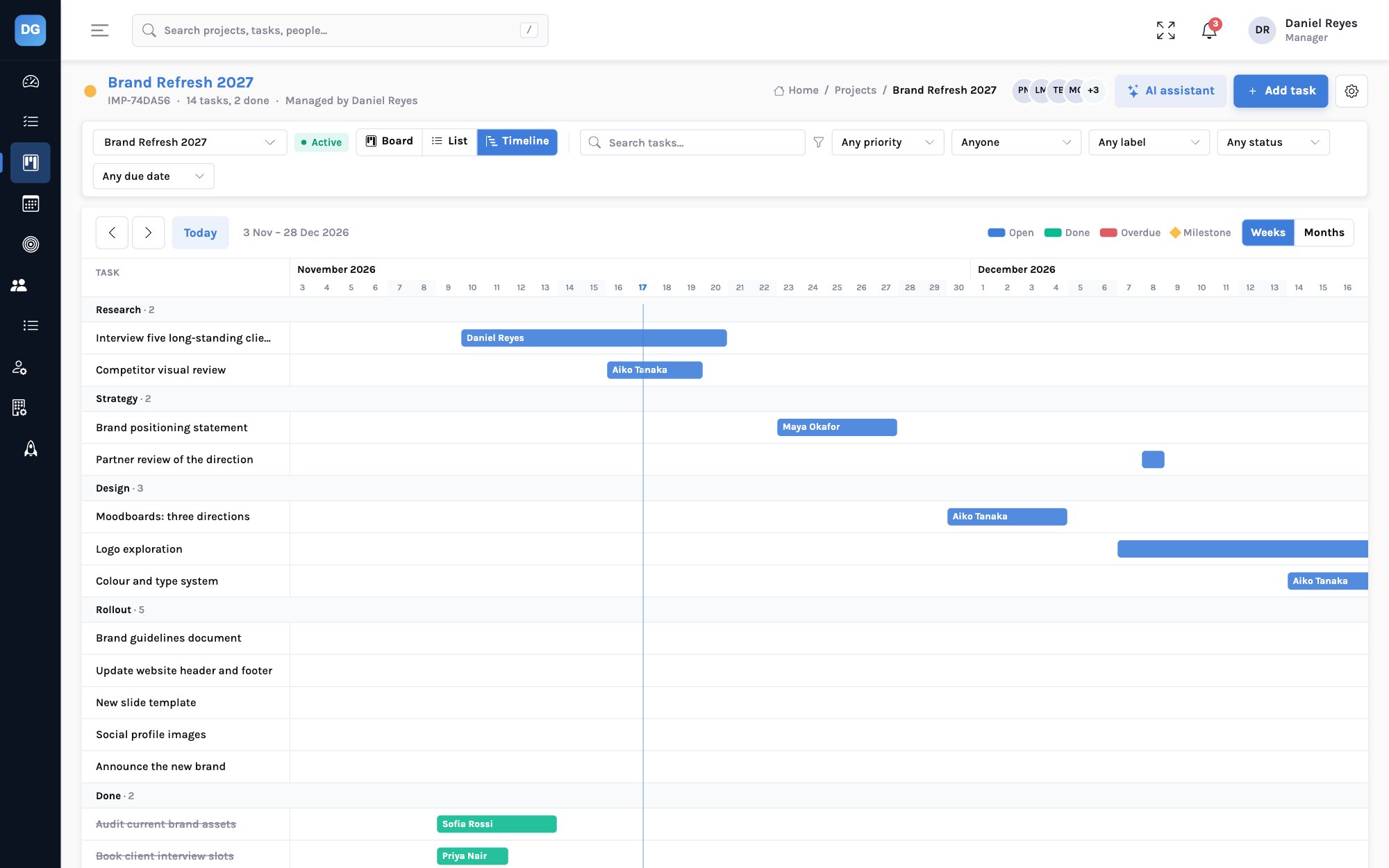
- Invite the people who did not match. Then assign their tasks from the project’s List view, where you can select several rows and set the owner at once.
- Check the timeline. Look for bars that are missing (tasks with no dates) and for milestones. Asana’s CSV does not say which tasks are milestones; tick Milestone on those tasks yourself.
- Re-attach the files that matter. Attachments are not copied. Most projects have three or four documents worth moving; drag them onto the tasks.
- Freeze the Asana project. Archive it, or at least tell the team it is read-only. Two live copies of a plan is worse than either one.
What the importer does to keep you safe
- Nothing is created until you review it. Upload, read, decide, then import.
- People are never invited or created. Assignees are matched to your existing colleagues or left unassigned.
- Links in the export are never fetched. Text is stored as text.
- The uploaded draft is deleted once it is imported, discarded, or 24 hours old. Only the counts are kept as history.
- Only admins and managers can import, and only into projects they manage.
What the Asana import does not do
It reads one project at a time from a CSV file; it does not connect to your Asana account. Comments are not in Asana’s CSV and do not come across. Attachments are not copied. Custom fields other than Priority, rules, forms, portfolios and goals stay in Asana. A task that lives in several Asana projects is imported once, into the project you are importing.
Moving a whole team rather than one project? A one-week migration playbook sets out the order. The importer itself is described on Import from Asana, Trello and Jira, and the other guides cover moving from Trello and moving from Jira.