Jira is built for software teams that plan in sprints, and it does that well. Plenty of teams on Jira do not work that way, though: they pull work across a board, they want a daily stand-up and goals in the same place, and they spend more time configuring workflows than using them. This post is for them. It moves one Jira project into DeliverGoals, says what each part of an issue becomes, and starts with the question of whether you should.
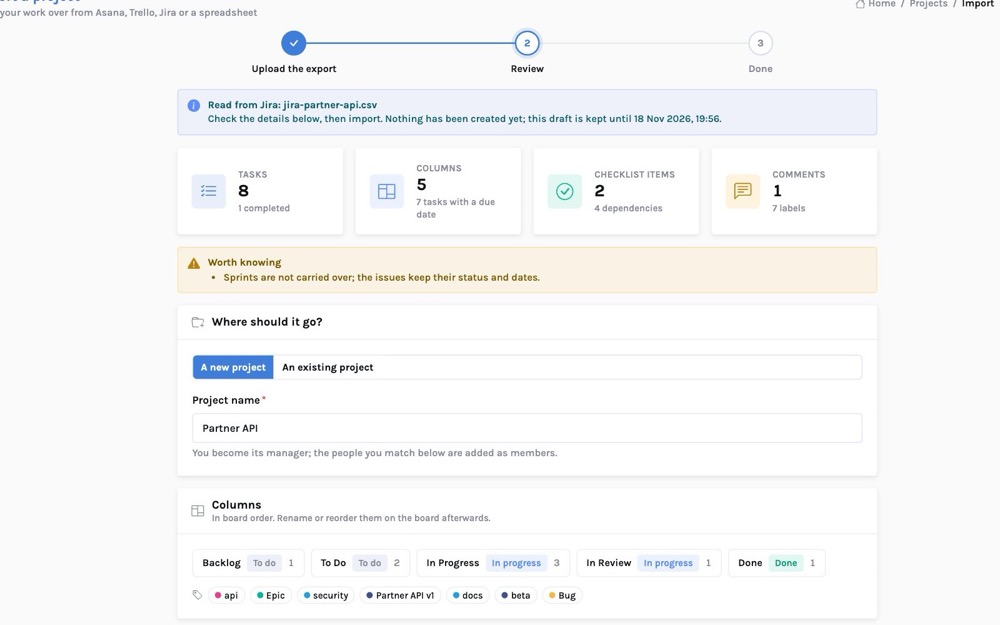
The example is Partner API, an eight-issue project exported from Jira for the Northwind Studio demo workspace. Northwind Studio and its people are fictional; the export uses the demo team’s names plus one contractor, Sam Okoro, who is not in the workspace. The screen below is DeliverGoals as it runs today.
First: is this the right move?
DeliverGoals has no sprints and no burndown charts. Issues arrive with their status, dates and story points, but there is no sprint to put them in. If your team plans two-week sprints, commits to a scope and reviews velocity, stay on Jira for that work. If your team runs Kanban, or uses sprints as a calendar rather than a commitment, DeliverGoals will feel lighter: one board per project, a timeline, daily stand-ups, goals that measure themselves from the work, and a manager’s brief of what is stuck.
Before you start
- One project per import. Filter the export to one Jira project. Up to 5,000 issues and 20 MB per file.
- Invite your people first. Jira’s CSV names people by display name, not email, so the importer matches by full name. Names that are spelled the same and belong to exactly one person in your company are matched for you.
- Be an admin or a manager. Members cannot import.
- Close out what is finished. Old resolved issues can stay in Jira. Filter by date if you only want current work.
Step 1: export the issues from Jira
In Jira, go to Filters → View all issues, filter to the project (and to a date range if you like), then choose Export → Export CSV (all fields). Choose “all fields”: that export includes the parent, link and comment columns the importer reads. Jira may limit how many issues one export holds; if yours is cut short, export in date ranges and import each file into the same project.
Upload the file under Projects → Import → Jira. If you pick the wrong tool by mistake, the importer says what the file looks like instead.
What maps to what
| In Jira | In DeliverGoals | Carried? |
|---|---|---|
| Statuses | Columns, ordered backlog and to do, in progress, review, done | Yes |
| Summary and Description | Task title and description, as plain text | Yes |
| Sub-tasks | Checklist items on the parent issue, ticked if done | Yes |
| Epics | Stay tasks, labelled Epic; their issues get the epic’s name as a label | Yes |
| Issue types such as Bug or Improvement | A label on the task | Yes |
| Labels (every Labels column) | Labels | Yes |
| Priority (Highest to Lowest) | Urgent, high, medium, low | Yes |
| Story points | Points on the task | Yes |
| Start date and Due date | Start and due dates | Yes |
| Resolution or Resolved | Completed | Yes |
| Comments | Comments with the author’s name where the file shows it, otherwise “a Jira user” | Yes, names partly |
| Blocks links | Dependencies; a loop is dropped with a warning | Yes |
| Assignee | A colleague matched by name, which you confirm | You confirm |
| Sprints | Not carried; DeliverGoals has no sprints | No |
| Workflows, permissions, custom fields, attachments | Not carried | No |
About comment authors: Jira Cloud writes the author of each comment as an account id, not a name. The importer looks for the same id in the Assignee, Reporter and Creator columns, where Jira does print a name beside it. Someone who commented but was never an assignee or reporter in the file shows as “a Jira user”. The comment text and date are kept either way.
Step 2: review what was read
For Partner API the review shows 8 tasks (1 completed), 5 columns, 2 checklist items, 4 dependencies, 1 comment and 7 labels, with one note under Worth knowing: sprints are not carried over, and the issues keep their status and dates.
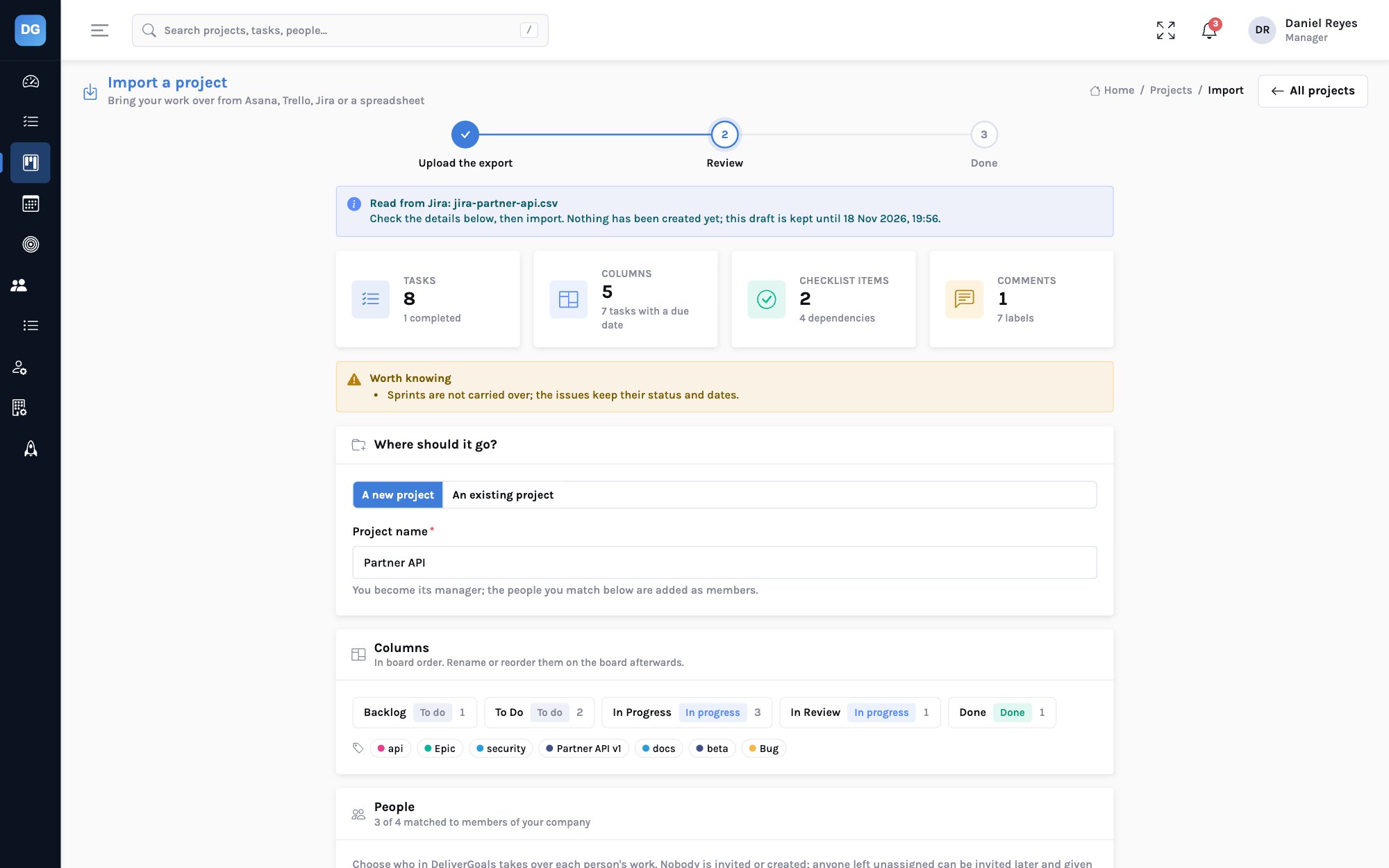
Ten issues went in and eight tasks came out: the two sub-tasks, “Add paging tests” and “Document error codes”, are now checklist items on their parent stories. The epic itself is a task labelled Epic, and each story under it carries the label Partner API v1, so filtering the board by that label shows the epic’s work. The bug about timeouts keeps a Bug label and its Highest priority, which DeliverGoals calls urgent.
The four Blocks links became dependencies: the authentication flow blocks the projects endpoint, both endpoints block rate limiting, and rate limiting blocks the partner beta. Those show on each task and feed the manager’s brief, which flags late work that is holding other work up.
Match the people
Tom Becker, Priya Nair and Daniel Reyes are matched by name. Sam Okoro, the contractor, is not in the workspace, so his issue arrives unassigned. Nobody is invited or created by the import; matched people are added to the project and told about their open tasks.
Step 3: import
Press Import. Everything is created in one transaction: if anything fails, nothing is created and the draft is still there. You become the manager of the new project, or the tasks are added to the existing project you chose, reusing columns with the same names.
After the import
- Invite the people who did not match, then assign their work from the project’s List view, several rows at a time.
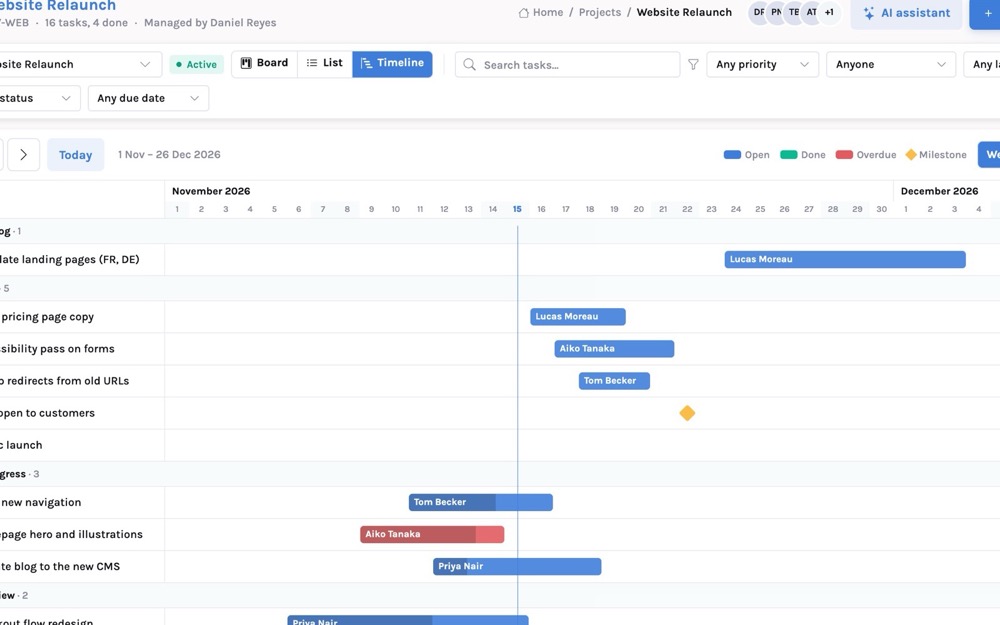
- Check the timeline. Issues with start and due dates appear as bars; tick Milestone on release dates.
- Re-attach important files. Attachments are not copied.
- Make the Jira project read-only or archive it, so the team has one place to update.
What the importer does to keep you safe
- Nothing is created until you review it.
- People are never invited or created; they are matched to existing colleagues or left unassigned.
- Links in the export are never fetched. Text is stored as text, never run as markup.
- The uploaded draft is deleted once imported, discarded, or 24 hours old.
- Only admins and managers can import, and only into projects they manage.
What the Jira import does not do
It reads a CSV export; it does not connect to Jira. Sprints, boards’ swimlanes, workflows and their transitions, permission schemes, components, versions, custom fields other than story points and start date, and attachments stay in Jira. DeliverGoals has no sprints or burndown charts, so it suits teams that run Kanban. Comment authors who appear nowhere else in the file show as “a Jira user”.
Moving more than one project, or the whole team? A one-week migration playbook sets out the order. The importer is described on Import from Asana, Trello and Jira; there are also guides to moving from Asana and moving from Trello.