The first hour of a new project is mostly clerical. You know the outcome and most of the steps; what takes the time is turning them into twenty cards with sensible dates, the right owners and the order they must happen in. That is a good job for a model, provided a person reads the result before anyone works from it.
Plan with AI does that job and stops there. It is in the project settings menu of any project, for the project’s manager or an admin. You write a brief and a start date; it returns a draft plan; you edit the draft; you press Create. The example below is from the Northwind Studio demo workspace, which is fictional.
The whole loop
The example: a studio office move
Daniel Reyes manages a new, empty project called Studio Office Move. Before planning, he adds Sofia, Tom and Maya to the project. This matters: the draft can only give tasks to the project’s members, and a project with no members gets a plan with no owners.
His brief is four sentences:
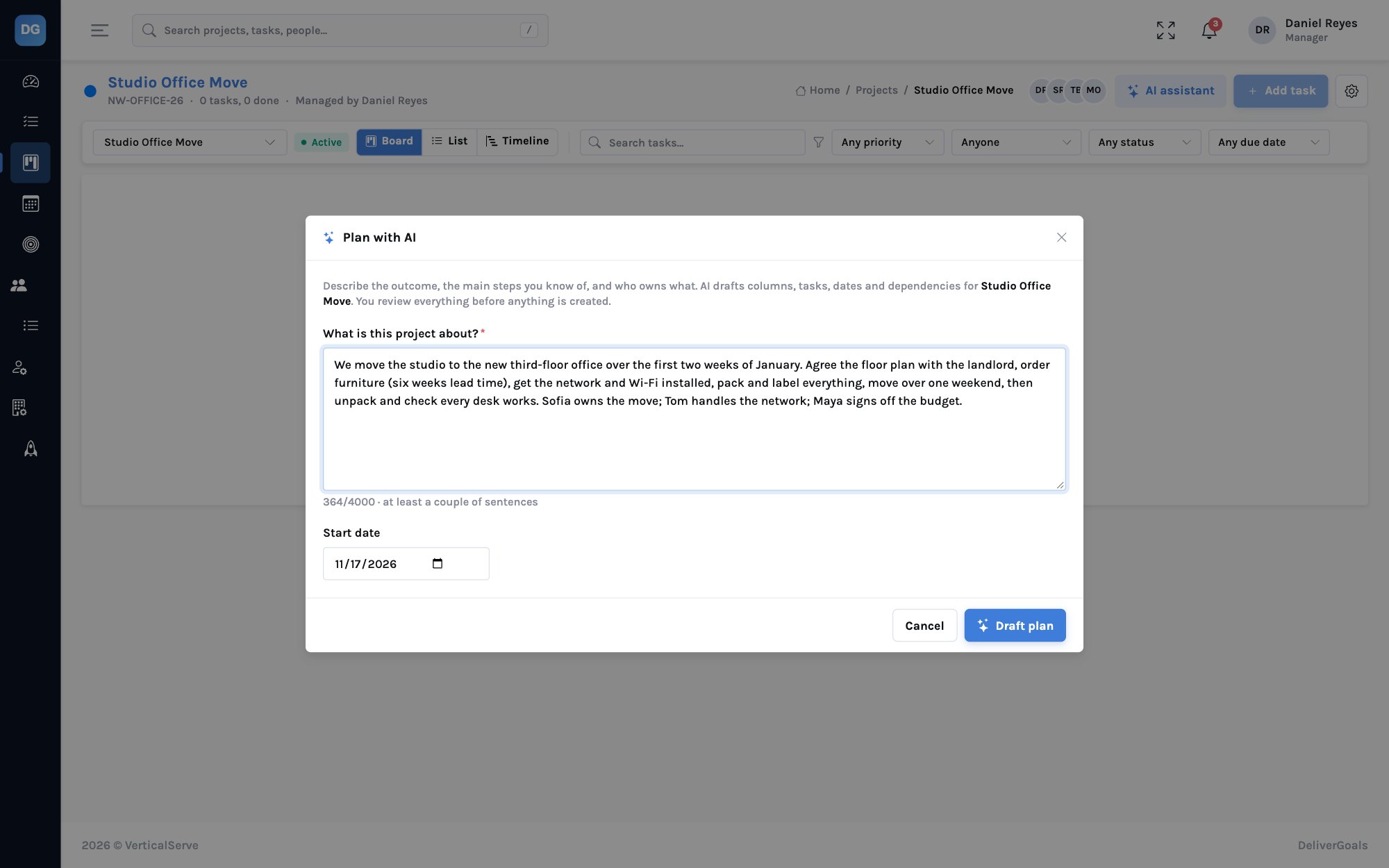
What makes a good brief
| Put in | Example from the brief | What it does to the draft |
|---|---|---|
| The outcome and the window | “Move to the third-floor office over the first two weeks of January” | Anchors the dates to a real target |
| The steps you already know | Floor plan, furniture, network, pack, move, unpack | Becomes the backbone of the tasks |
| Constraints | “Furniture has six weeks lead time” | Pushes the order early and leaves a gap for delivery |
| Owners, by first name | “Sofia owns the move; Tom handles the network” | Assigns tasks to those members |
| Who approves | “Maya signs off the budget” | Adds an approval step that later work waits for |
Leave out what the model cannot know anyway, such as company policy, and what does not belong in a plan, such as passwords or client contact details. The brief is sent to the model, and nothing else in your workspace is.
What came back
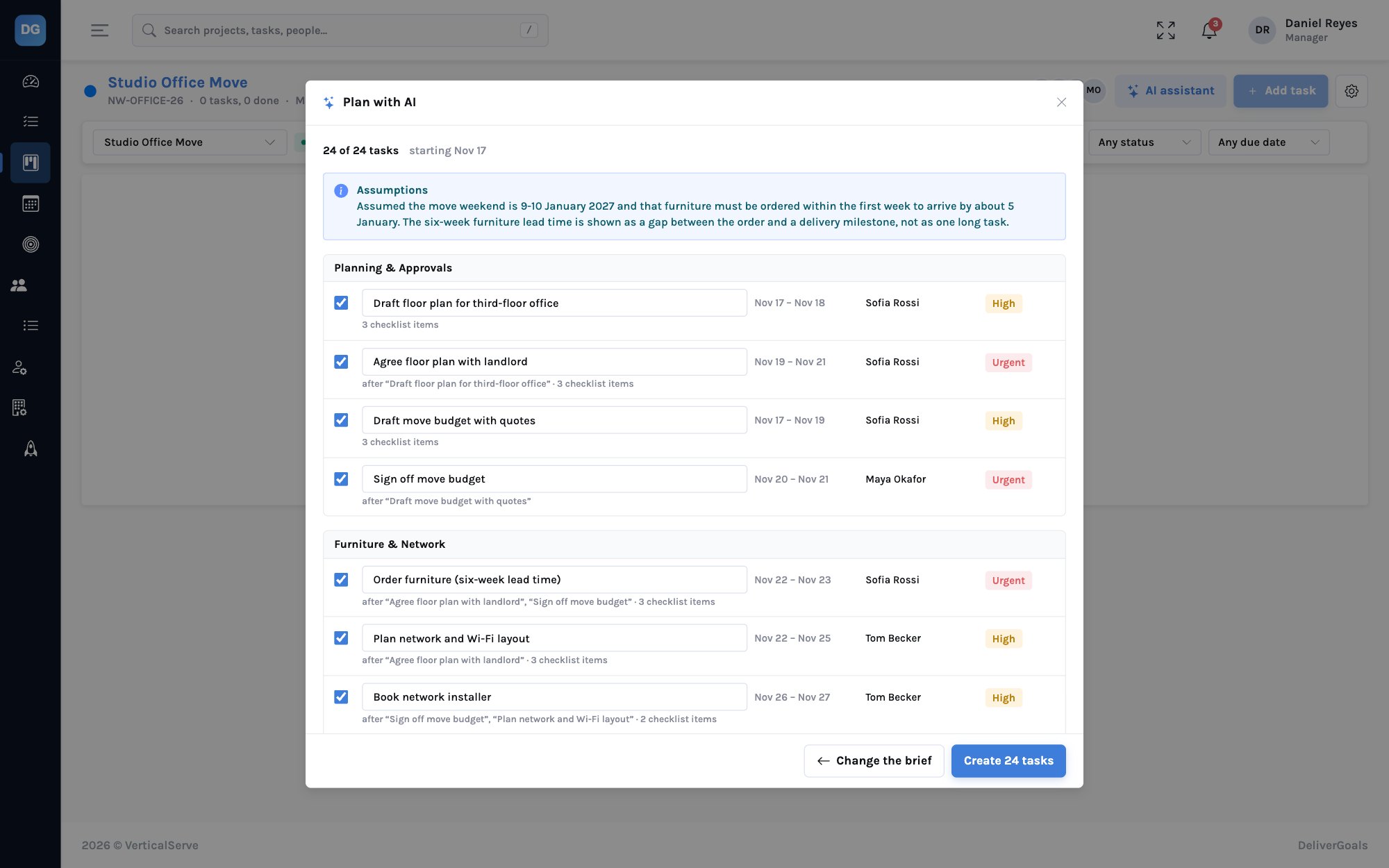
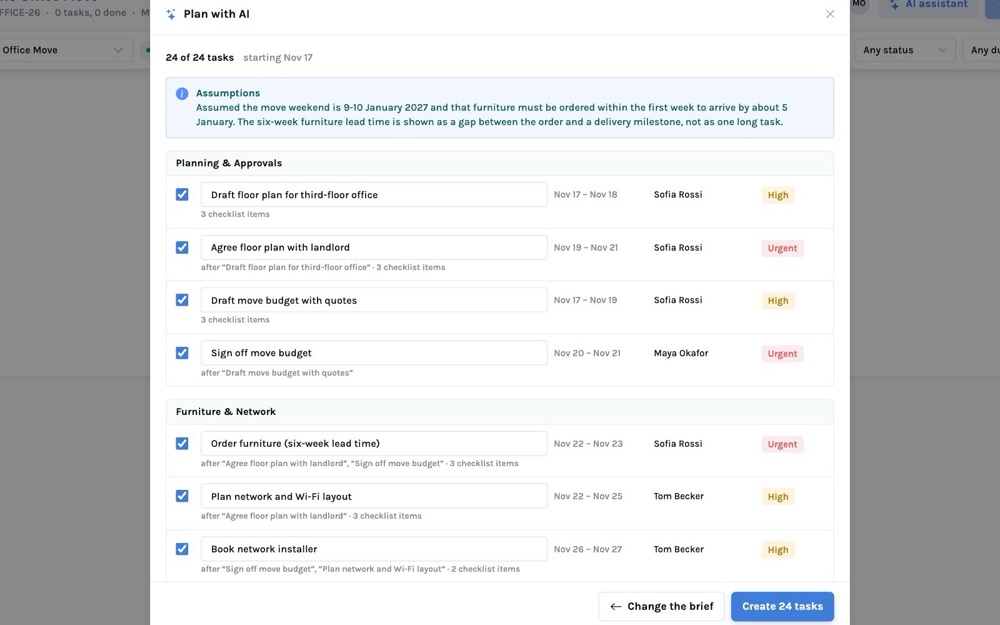
The draft had 24 tasks. It began with an Assumptions note: the move weekend was taken as 9–10 January, and the furniture had to be ordered in the first week to arrive by about 5 January. That note is the first thing to read, because every date below it follows from it. If the move were the following weekend, the right response would be to change the brief and draft again, not to edit 24 dates by hand.
The tasks themselves were sensible: Sofia drafts the floor plan and agrees it with the landlord; she drafts the budget and Maya signs it off; only after both does Sofia order the furniture; Tom plans the network once the floor plan is agreed. Each row says what it comes “after”.
The rules the draft follows
A draft is not free text. It must fit a fixed shape, and anything that does not fit is refused rather than repaired:
- Up to 6 columns and 30 tasks, each task with up to 5 checklist items.
- Dates are counted from your start date; a task lasts between 1 and 60 days, and milestones are single days.
- Owners come only from the project’s members.
- A task can depend only on tasks listed before it, at most five, so the plan cannot contain a loop.
- Columns that already exist on the project, by name, are reused rather than duplicated.
When you press Create, the plan you edited is checked again on the server as if it came from a stranger: the same limits, owners must still be project members, dates must sit within a year, and dependencies must still point backwards. Only then are the columns, tasks, checklists and dependencies created, in one go, and each new owner gets one notification.
Reviewing it properly
Things worth checking every time: the assumptions; the durations of anything that depends on an outside party; the owners of approval steps; and whether the plan quietly assumes people work through public holidays.
Where it stops
The model can be wrong, most often about how long things take. It does not know your calendar, holidays, or anyone’s other work. It drafts once: it does not watch the project or re-plan when dates slip. Use it to get a first board on the screen quickly, then manage the project as usual.
What the model sees, and what it costs
| Question | Answer |
|---|---|
| Who can use it? | The project’s manager, or an admin |
| What is sent to the model? | The project’s name, your brief, the start date, and the names and roles of the project’s members |
| What is not sent? | Other projects, existing tasks, email addresses, stand-ups, comments |
| What happens to the answer? | It is checked against the fixed shape; markup and control characters are removed from titles and descriptions, and links and email addresses from the assumptions note |
| Is there a limit? | Yes: a daily allowance per person and per company, counted on the server; the page shows what is left today |
| Can it be switched off? | Yes. Without AI configured, the rest of DeliverGoals works as usual |
When not to use it
Some projects should be planned by hand. If the work is a repeat of last quarter’s, copying that project’s structure is quicker and more accurate than describing it. If the project has fewer than six or seven tasks, typing them is faster than reviewing a draft. And if the plan depends on facts only your team has, such as a client’s approval cycle or a supplier’s real lead times, write those into the brief or expect to correct the dates.
The brief and the draft are not stored as a conversation. What remains is the board you chose to create.
For the other AI features, the per-project assistant and the manager’s daily brief, see AI features and using the AI assistant to break work down. For what happens after the plan exists, see the complete project cycle.