The slow part of planning is rarely the thinking. It is the typing: twelve cards after a kickoff call, each with a title, a column and a priority; six subtasks under a task everyone agrees is too big. An assistant that takes a sentence and does the typing is useful for exactly that, and for little else. This post is about using it for that, carefully.
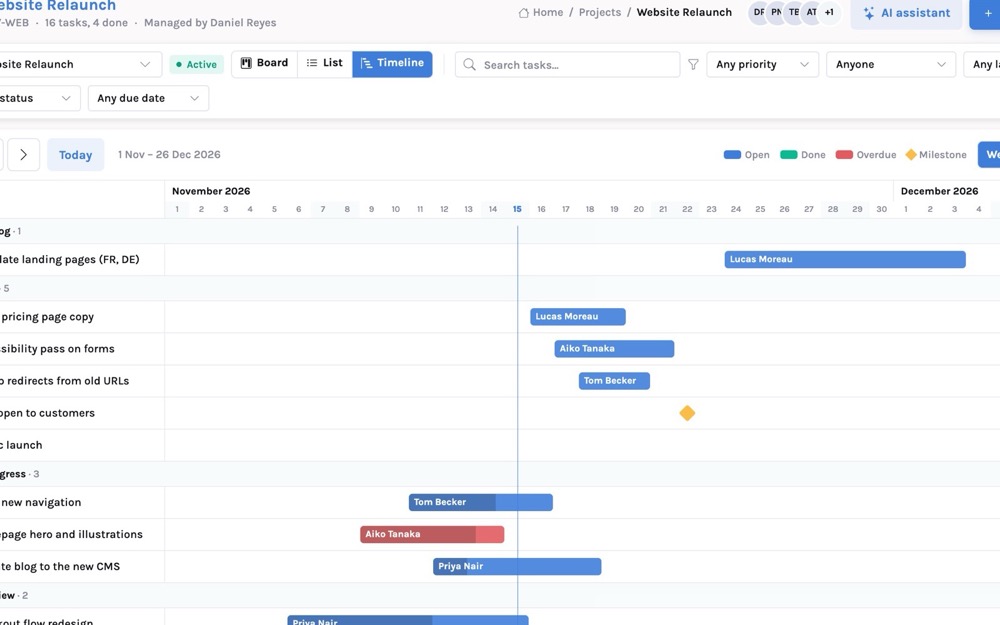
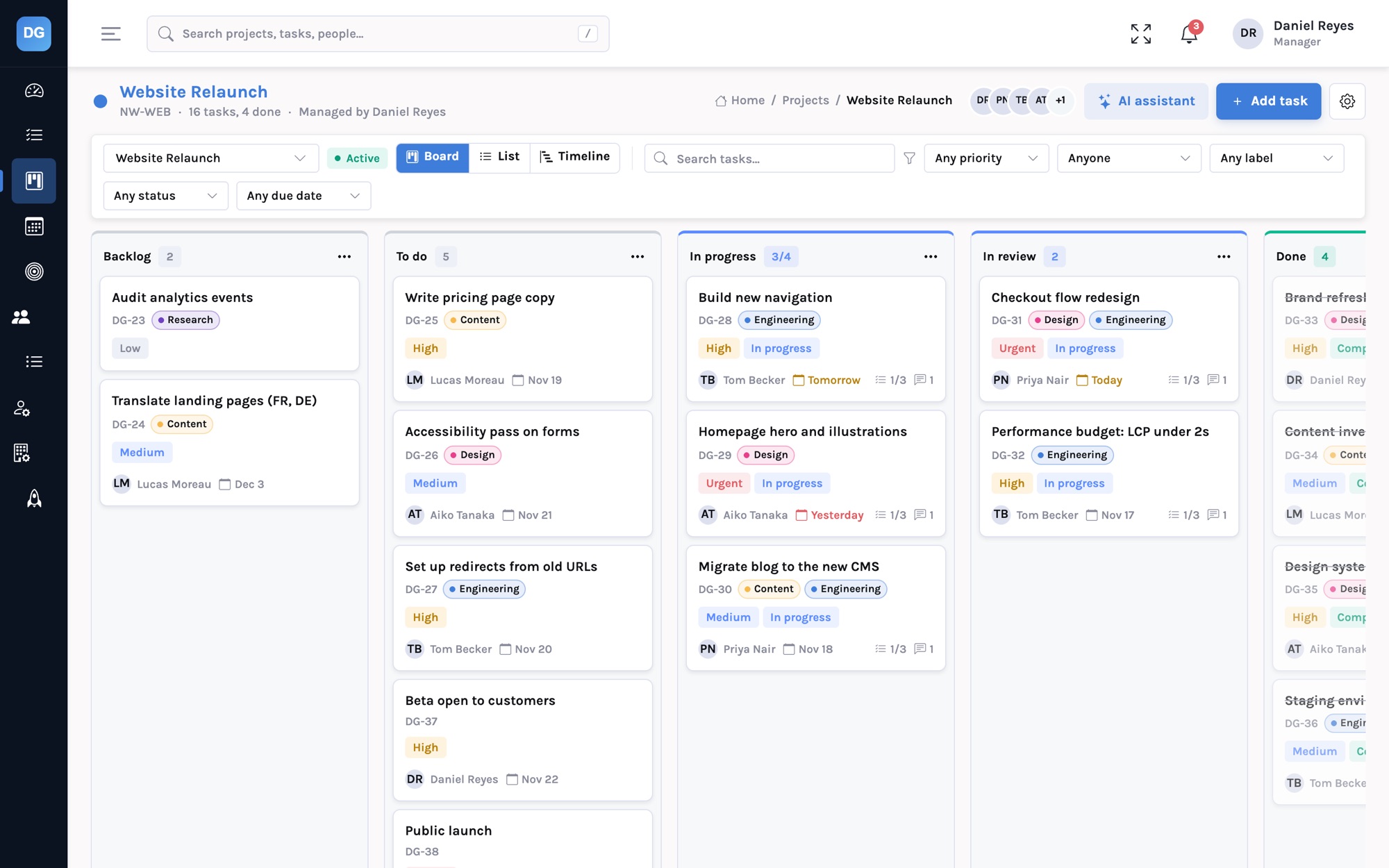
Every DeliverGoals project has an AI assistant button beside Add task. It does four things, and only these: it creates tasks, updates tasks, moves tasks between columns, and reports the board’s status, all from a prompt in plain English. Inside a task, Generate with AI produces a list of subtasks. The examples below are set in the Northwind Studio demo workspace, which is fictional.
Two conditions before anything works
The assistant needs an AI model to be configured for your workspace. If none is, the rest of DeliverGoals works as usual and the assistant does not. Calls are also rate limited, so it is a tool for a planning session, not for hundreds of requests in a row.
How a request becomes cards
Prompts that suit it
The assistant does best with the kind of request you would give a careful colleague who has the board open: specific about which tasks, which column, and what should change. The patterns below match the four things it does. The wording uses the demo project, Website Relaunch.
| You want to | A prompt shaped like this | Why it is shaped that way |
|---|---|---|
| Create several tasks | “Add three tasks to To do: write the pricing page copy, set up redirects from the old URLs, and run an accessibility pass on the forms.” | Names the column and lists the tasks one by one |
| Create with detail | “Create a high-priority task ‘Translate landing pages (FR, DE)’ in Backlog, due 3 December.” | Gives the title in quotes, and each field in words |
| Update a task | “Set ‘Public launch’ to urgent.” | Uses the task’s exact title, so there is one match |
| Move a task | “Move ‘Build new navigation’ to In review.” | Names the task and the destination column as they appear on the board |
| Get status | “Where does this board stand?” | A question, not an instruction; nothing changes |
These are patterns, not guaranteed commands. How much of a request the assistant carries out, and which fields it fills in, depends on the prompt and on the model your workspace uses, which is one more reason to read the result.
Three habits make these work better:
- Use the names on the board. Column names and task titles as written. “The nav thing” could be two different cards.
- One kind of change per prompt. Create in one request, move in the next. It is easier to check what happened.
- Say how many. “Add three tasks” lets you count three cards afterwards.
No tasks named, no column, no change described. Whatever happens, you cannot tell whether it is what you meant.
One task, one column. You can look at the board and see in a second whether it was done.
Breaking one task into subtasks
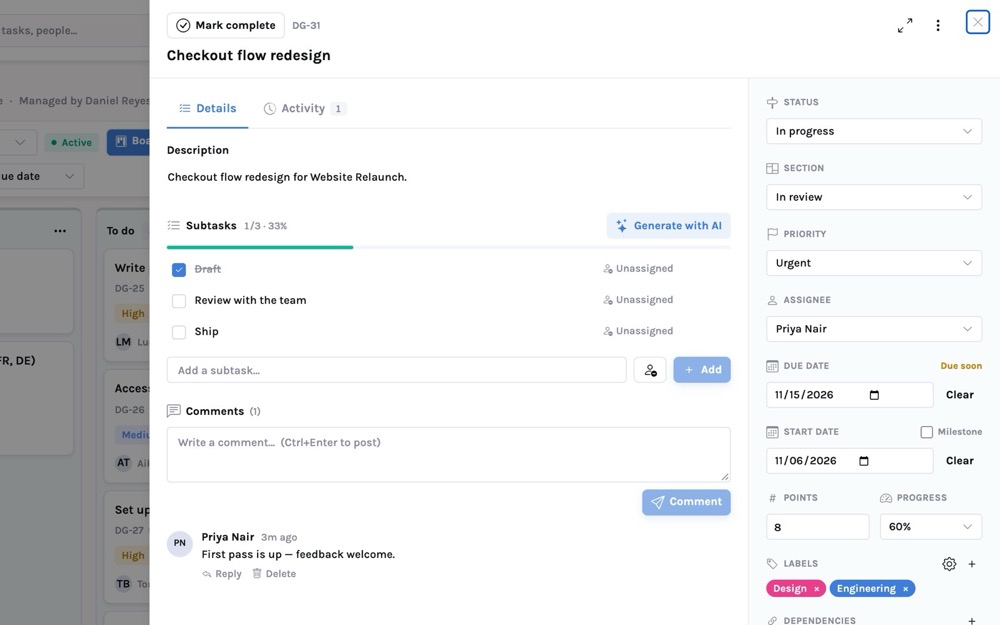
The second use is inside a task. Open the task, and above the subtask list choose Generate with AI. The assistant writes a checklist for that task. From there the subtasks are ordinary subtasks: you can edit them, delete them, assign each one to a person and tick them off.
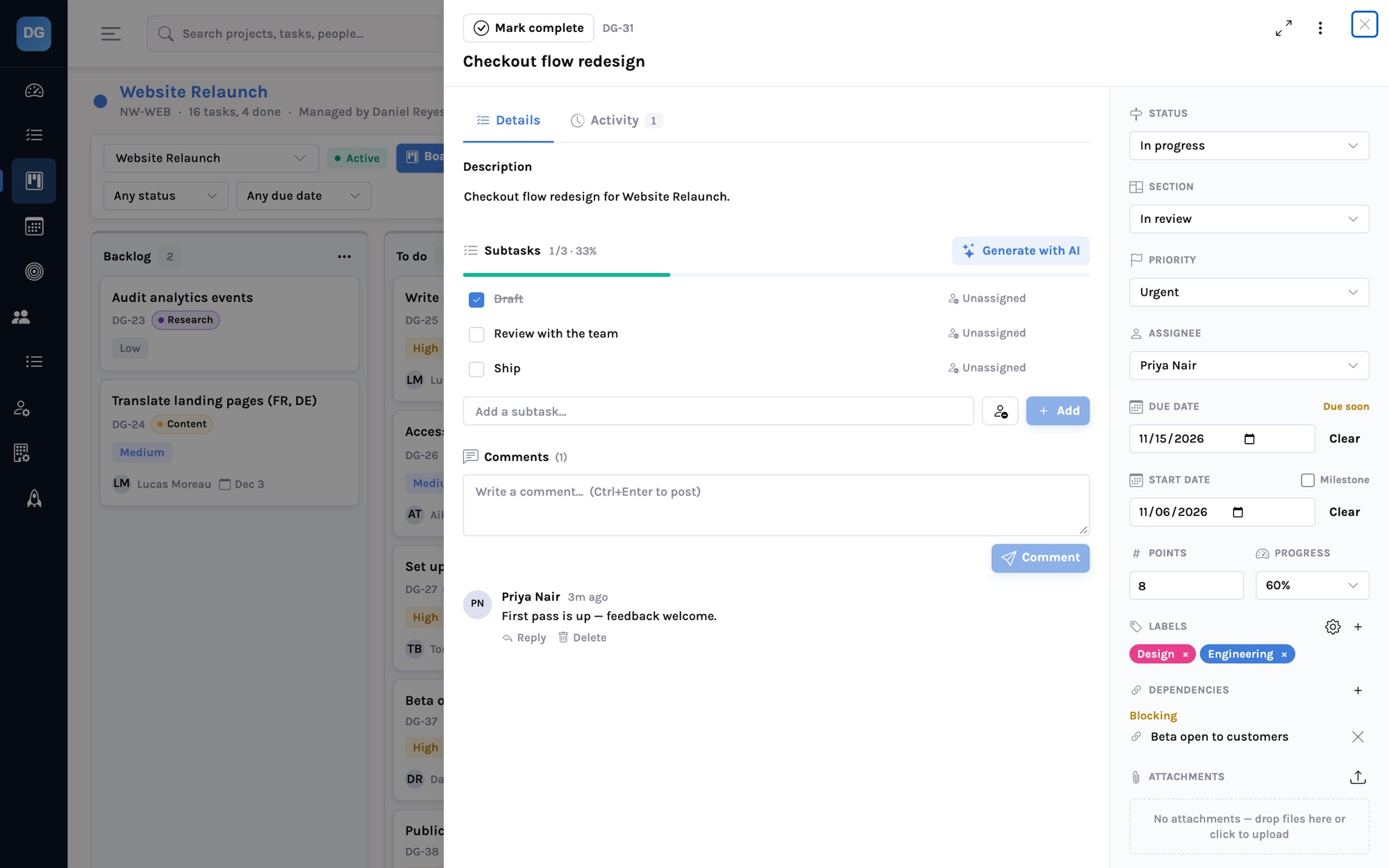
What it generates depends on what it has to go on. A task called “Checkout” with an empty description gives it nothing. Before you generate:
- Write a real title. “Checkout flow redesign” is better than “Checkout”.
- Add two lines of description. What is in scope, and what done looks like.
- Then generate, and prune. Delete the steps that do not apply to your team. Add the one it could not know about, such as the client’s sign-off.
- Assign the subtasks. A checklist with no names on it is a list of hopes.
What it will not do
| It will not | So you |
|---|---|
| Work when AI is switched off or today’s allowance is used | It says so; try again later, or write the tasks by hand |
| Accept unlimited requests: it is rate limited | Batch related tasks into one prompt |
| Run by itself on a schedule or when something happens | Not the assistant: that is what the project’s automation recipes are for (see automating the busywork) |
| Know your client, your deadlines or your team beyond what is in the project | Put the facts in the prompt or in the task |
| Guarantee it understood you | Read the result |
It is also not a chat companion for everything in the workspace. It is opened from a project and works on that project’s tasks.
Review before you trust it
A language model can misread a prompt, and it does so confidently. On a project board the cost of a misreading is that someone starts work from a wrong card. So treat what the assistant did as a draft from a new colleague: probably fine, always read.
A review takes a minute:
- Count. You asked for three tasks. Are there three new cards?
- Check the column. Are they where you said?
- Read the titles. Would a teammate understand each without you there?
- Check what was changed. After an update or a move, open the task and look at its Activity tab, which keeps the history of changes to the task.
- Fix by hand. If one card is wrong, correcting it yourself is quicker than a second prompt.
For generated subtasks the review is the pruning step above. The assistant does not know which steps your team always skips, or which one the client insists on.
Where it earns its place
- After a meeting. Turn the action items into cards while everyone still remembers what they meant.
- At the start of a large task. Generate subtasks to get past the blank list, then make them yours.
- Before a call. Ask where the board stands instead of scanning five columns.
And where it does not: deciding priorities, setting dates the team has not agreed, or anything you would not let a new colleague do unsupervised on their first day.
The AI assistant page lists what it does and where it stops. If you are setting up the board it will work on, start with running a relaunch on one board.